2025-08-24 00:47:41 +08:00

2025-08-22 10:38:47 +08:00
2025-08-21 15:32:47 +08:00
# Context7 MCP - 为所有 Prompt 获取最新文档
2025-04-23 11:37:56 +08:00
2025-08-21 15:32:47 +08:00
[](https://context7.com) [](https://smithery.ai/server/@upstash/context7 -mcp)
[](https://cursor.com/en/install-mcp?name=context7& config=eyJ1cmwiOiJodHRwczovL21jcC5jb250ZXh0Ny5jb20vbWNwIn0%3D) [<img alt="Install in VS Code (npx)" src="https://img.shields.io/badge/Install%20in%20VS%20Code-0098FF?style=for-the-badge&logo=visualstudiocode&logoColor=white"> ](https://insiders.vscode.dev/redirect?url=vscode%3Amcp%2Finstall%3F%7B%22name%22%3A%22context7%22%2C%22command%22%3A%22npx%22%2C%22args%22%3A%5B%22-y%22%2C%22%40upstash%2Fcontext7-mcp%40latest%22%5D%7D )
2025-08-24 00:30:59 +08:00
[](../README.md) [](./README.zh-TW.md) [](./README.ja.md) [](./README.ko.md) [](./README.es.md) [](./README.fr.md) [-purple>)](./README.pt-BR.md) [](./README.it.md) [](./README.id-ID.md) [](./README.de.md) [](./README.ru.md) [](./README.uk.md) [](./README.tr.md) [](./README.ar.md) [](./README.vi.md)
2025-04-23 11:37:56 +08:00
2025-04-25 17:06:09 +08:00
## ❌ 不使用Context7
2025-04-23 11:37:56 +08:00
大语言模型(LLM)可能依赖过时或通用的库信息。你可能会遇到:
- ❌ 代码示例已过时,或基于一年前的训练数据
- ❌ 幻觉产生的API根本不存在
- ❌ 针对旧版本包的通用回答
2025-04-25 17:06:09 +08:00
## ✅ 使用Context7
2025-04-23 11:37:56 +08:00
Context7 MCP直接从源头获取最新的、特定版本的文档和代码示例 — 并将它们直接放入你的提示中。
2025-04-25 17:06:09 +08:00
在Cursor中添加`使用 context7` 到你的提示:
2025-04-23 11:37:56 +08:00
```txt
2025-04-25 17:06:09 +08:00
创建一个使用app router的基本Next.js项目。使用 context7
2025-04-23 11:37:56 +08:00
```
```txt
2025-04-25 17:06:09 +08:00
创建一个脚本,
2025-04-23 11:37:56 +08:00
```
Context7将最新的代码示例和文档直接获取到你的LLM上下文中。
- 1️
2025-04-25 17:06:09 +08:00
- 2️ `使用 context7`
- 3️
2025-04-23 11:37:56 +08:00
2025-08-19 10:50:30 +08:00
无需在标签间切换, ,
## 📚 添加项目
2025-08-23 15:47:04 +08:00
查看我们的[项目添加指南 ](./adding-projects.md )来学习如何将你最喜欢的库添加(或更新)到 Context7。
2025-04-23 11:37:56 +08:00
## 🛠️ 开始使用
### 要求
- Node.js >= v18.0.0
2025-08-21 15:32:47 +08:00
- Cursor, Claude Code, VSCode, Windsurf 或其他MCP客户端
2025-08-22 16:59:42 +08:00
- Context7 API密钥( , ) ( context7.com/dashboard ](https://context7.com/dashboard )创建账户获取)
2025-04-23 11:37:56 +08:00
2025-08-19 10:50:30 +08:00
< details >
< summary > < b > 通过 Smithery 安装< / b > < / summary >
2025-04-23 11:37:56 +08:00
2025-08-19 10:50:30 +08:00
通过 [Smithery ](https://smithery.ai/server/@upstash/context7-mcp ) 为任何客户端自动安装 Context7 MCP 服务器:
2025-04-23 11:37:56 +08:00
```bash
2025-08-19 10:50:30 +08:00
npx -y @smithery/cli@latest install @upstash/context7 -mcp --client < CLIENT_NAME > --key < YOUR_SMITHERY_KEY >
2025-04-23 11:37:56 +08:00
```
2025-08-19 10:50:30 +08:00
你可以在 [Smithery.ai 网页 ](https://smithery.ai/server/@upstash/context7-mcp )中找到你的 Smithery 密钥。
< / details >
< details >
< summary > < b > 在 Cursor 中安装< / b > < / summary >
2025-04-23 11:37:56 +08:00
前往:`Settings` -> `Cursor Settings` -> `MCP` -> `Add new global MCP server`
2025-08-19 10:50:30 +08:00
推荐将以下配置粘贴到你的 Cursor `~/.cursor/mcp.json` 文件中。你也可以通过在项目文件夹中创建 `.cursor/mcp.json` 在特定项目中安装。更多信息请参阅 [Cursor MCP 文档 ](https://docs.cursor.com/context/model-context-protocol )。
> 自 Cursor 1.0 起,你可以点击下面的安装按钮进行即时一键安装。
#### Cursor 远程服务器连接
[](https://cursor.com/en/install-mcp?name=context7& config=eyJ1cmwiOiJodHRwczovL21jcC5jb250ZXh0Ny5jb20vbWNwIn0%3D)
```json
{
"mcpServers": {
"context7": {
2025-08-22 16:59:42 +08:00
"url": "https://mcp.context7.com/mcp",
"headers": {
"CONTEXT7_API_KEY": "YOUR_API_KEY"
}
2025-08-19 10:50:30 +08:00
}
}
}
```
#### Cursor 本地服务器连接
[](https://cursor.com/en/install-mcp?name=context7& config=eyJjb21tYW5kIjoibnB4IC15IEB1cHN0YXNoL2NvbnRleHQ3LW1jcCJ9)
2025-04-23 11:37:56 +08:00
```json
{
"mcpServers": {
"context7": {
"command": "npx",
2025-08-22 16:59:42 +08:00
"args": ["-y", "@upstash/context7 -mcp", "--api-key", "YOUR_API_KEY"]
2025-04-23 11:37:56 +08:00
}
}
}
```
2025-08-21 15:32:47 +08:00
< / details >
2025-04-23 11:37:56 +08:00
< details >
2025-08-21 15:32:47 +08:00
< summary > < b > 在 Claude Code 中安装< / b > < / summary >
2025-04-23 11:37:56 +08:00
2025-08-24 02:06:30 +08:00
运行以下命令。更多信息请参见 [Claude Code MCP 文档 ](https://docs.anthropic.com/zh-CN/docs/claude-code/mcp )。
2025-08-19 10:50:30 +08:00
2025-08-21 15:32:47 +08:00
#### Claude Code 远程服务器连接
```sh
2025-08-22 16:59:42 +08:00
claude mcp add --transport http context7 https://mcp.context7.com/mcp --header "CONTEXT7_API_KEY: YOUR_API_KEY"
2025-04-23 11:37:56 +08:00
```
2025-08-21 15:32:47 +08:00
或者使用 SSE 传输:
2025-04-23 11:37:56 +08:00
2025-08-21 15:32:47 +08:00
```sh
2025-08-22 16:59:42 +08:00
claude mcp add --transport sse context7 https://mcp.context7.com/sse --header "CONTEXT7_API_KEY: YOUR_API_KEY"
2025-08-21 15:32:47 +08:00
```
2025-04-23 11:37:56 +08:00
2025-08-21 15:32:47 +08:00
#### Claude Code 本地服务器连接
2025-08-19 10:50:30 +08:00
2025-08-21 15:32:47 +08:00
```sh
2025-08-26 09:28:57 +08:00
claude mcp add context7 -- npx -y @upstash/context7 -mcp --api-key YOUR_API_KEY
2025-04-23 11:37:56 +08:00
```
< / details >
2025-08-19 10:50:30 +08:00
< details >
< summary > < b > 在 Windsurf 中安装< / b > < / summary >
将此内容添加到你的 Windsurf MCP 配置文件中。更多信息请参阅 [Windsurf MCP 文档 ](https://docs.windsurf.com/windsurf/cascade/mcp )。
#### Windsurf 远程服务器连接
```json
{
"mcpServers": {
"context7": {
2025-08-22 16:59:42 +08:00
"serverUrl": "https://mcp.context7.com/mcp",
"headers": {
"CONTEXT7_API_KEY": "YOUR_API_KEY"
}
2025-08-19 10:50:30 +08:00
}
}
}
```
2025-04-23 11:37:56 +08:00
2025-08-19 10:50:30 +08:00
#### Windsurf 本地服务器连接
2025-04-23 11:37:56 +08:00
```json
{
"mcpServers": {
"context7": {
"command": "npx",
2025-08-22 16:59:42 +08:00
"args": ["-y", "@upstash/context7 -mcp", "--api-key", "YOUR_API_KEY"]
2025-04-23 11:37:56 +08:00
}
}
}
```
2025-08-19 10:50:30 +08:00
< / details >
< details >
< summary > < b > 在 VS Code 中安装< / b > < / summary >
[<img alt="在 VS Code 中安装 (npx)" src="https://img.shields.io/badge/VS_Code-VS_Code?style=flat-square&label=Install%20Context7%20MCP&color=0098FF"> ](https://insiders.vscode.dev/redirect?url=vscode%3Amcp%2Finstall%3F%7B%22name%22%3A%22context7%22%2C%22command%22%3A%22npx%22%2C%22args%22%3A%5B%22-y%22%2C%22%40upstash%2Fcontext7-mcp%40latest%22%5D%7D )
[<img alt="在 VS Code Insiders 中安装 (npx)" src="https://img.shields.io/badge/VS_Code_Insiders-VS_Code_Insiders?style=flat-square&label=Install%20Context7%20MCP&color=24bfa5"> ](https://insiders.vscode.dev/redirect?url=vscode-insiders%3Amcp%2Finstall%3F%7B%22name%22%3A%22context7%22%2C%22command%22%3A%22npx%22%2C%22args%22%3A%5B%22-y%22%2C%22%40upstash%2Fcontext7-mcp%40latest%22%5D%7D )
将此内容添加到你的 VS Code MCP 配置文件中。更多信息请参阅 [VS Code MCP 文档 ](https://code.visualstudio.com/docs/copilot/chat/mcp-servers )。
#### VS Code 远程服务器连接
```json
"mcp": {
2025-04-23 11:37:56 +08:00
"servers": {
2025-08-19 10:50:30 +08:00
"context7": {
"type": "http",
2025-08-22 16:59:42 +08:00
"url": "https://mcp.context7.com/mcp",
"headers": {
"CONTEXT7_API_KEY": "YOUR_API_KEY"
}
2025-08-19 10:50:30 +08:00
}
}
}
```
#### VS Code 本地服务器连接
```json
"mcp": {
"servers": {
"context7": {
2025-04-23 11:37:56 +08:00
"type": "stdio",
"command": "npx",
2025-08-22 16:59:42 +08:00
"args": ["-y", "@upstash/context7 -mcp", "--api-key", "YOUR_API_KEY"]
2025-08-19 10:50:30 +08:00
}
}
}
```
< / details >
< details >
2025-08-21 15:32:47 +08:00
< summary >
2025-08-22 10:38:47 +08:00
< b > 在 Cline 中安装< / b >
2025-08-21 15:32:47 +08:00
< / summary >
2025-08-19 10:50:30 +08:00
2025-08-21 15:32:47 +08:00
您可以通过以下步骤轻松地通过 [Cline MCP Server 市场 ](https://cline.bot/mcp-marketplace ) 安装 Context7:
2025-08-19 10:50:30 +08:00
2025-08-21 15:32:47 +08:00
1. 打开 **Cline** 。
2. 点击汉堡菜单图标 (☰),进入 **MCP 服务器** 部分。
3. 在 **市场** 标签页中的搜索栏搜索 _Context7_ 。
4. 点击 **安装** 按钮。
< / details >
< details >
2025-08-22 10:38:47 +08:00
< summary > < b > 在 Zed 中安装< / b > < / summary >
2025-08-21 15:32:47 +08:00
它可以通过 [Zed Extensions ](https://zed.dev/extensions?query=Context7 ) 安装,或者您也可以将以下内容添加到您的 Zed `settings.json` 中。更多信息请参见 [Zed Context Server 文档 ](https://zed.dev/docs/assistant/context-servers )。
2025-08-19 10:50:30 +08:00
```json
{
2025-08-21 15:32:47 +08:00
"context_servers": {
"Context7": {
"command": {
"path": "npx",
2025-08-22 16:59:42 +08:00
"args": ["-y", "@upstash/context7 -mcp", "--api-key", "YOUR_API_KEY"]
2025-08-21 15:32:47 +08:00
},
"settings": {}
2025-08-19 10:50:30 +08:00
}
}
}
```
2025-08-21 15:32:47 +08:00
< / details >
< details >
< summary > < b > 在 Augment Code 中安装< / b > < / summary >
要在 Augment Code 中配置 Context7 MCP,
### **A. 在 Augment Code Code UI 中使用**
1. 点击 hamburger 菜单。
2. 选择 **Settings** 。
3. 进入 **Tools** 部分。
4. 点击 ** + Add MCP** 按钮。
5. 输入以下命令:
```
npx -y @upstash/context7 -mcp@latest
```
6. 给 MCP 命名为:**Context7**。
7. 点击 **Add** 按钮。
添加 MCP 服务器后,您即可在 Augment Code 内直接使用 Context7 提供的最新代码文档功能。
---
### **B. 手动配置**
1. 按下 Cmd/Ctrl + Shift + P,
2. 选择编辑设置 (Edit Settings)。
3. 在高级设置中,点击在 settings.json 中编辑 (Edit in settings.json)。
4. 将服务器配置添加到 `augment.advanced` 对象中的 `mcpServers` 数组中。
2025-08-19 10:50:30 +08:00
```json
2025-08-21 15:32:47 +08:00
"augment.advanced": {
"mcpServers": [
{
"name": "context7",
"command": "npx",
2025-08-22 16:59:42 +08:00
"args": ["-y", "@upstash/context7 -mcp", "--api-key", "YOUR_API_KEY"]
2025-04-23 11:37:56 +08:00
}
2025-08-21 15:32:47 +08:00
]
2025-04-23 11:37:56 +08:00
}
```
2025-08-21 15:32:47 +08:00
添加 MCP 服务器后,重启编辑器。如果收到任何错误,请检查语法,确保没有缺少关闭括号或逗号。
2025-08-19 10:50:30 +08:00
< / details >
< details >
2025-08-21 15:32:47 +08:00
< summary > < b > 在 Roo Code 中安装< / b > < / summary >
2025-04-27 11:35:23 +08:00
2025-08-21 15:32:47 +08:00
将此内容添加到您的 Roo Code MCP 配置文件中。更多信息请参见 [Roo Code MCP 文档 ](https://docs.roocode.com/features/mcp/using-mcp-in-roo )。
#### Roo Code 远程服务器连接
2025-04-27 11:35:23 +08:00
```json
{
2025-08-21 15:32:47 +08:00
"mcpServers": {
"context7": {
"type": "streamable-http",
"url": "https://mcp.context7.com/mcp"
}
}
}
```
#### Roo Code 本地服务器连接
```json
{
"mcpServers": {
"context7": {
"command": "npx",
2025-08-22 16:59:42 +08:00
"args": ["-y", "@upstash/context7 -mcp", "--api-key", "YOUR_API_KEY"]
2025-04-27 11:35:23 +08:00
}
}
}
```
2025-08-19 10:50:30 +08:00
< / details >
< details >
< summary > < b > 在 Gemini CLI 中安装< / b > < / summary >
2025-08-21 15:32:47 +08:00
详细信息请参阅 [Gemini CLI 配置 ](https://google-gemini.github.io/gemini-cli/docs/tools/mcp-server.html )。
2025-08-19 10:50:30 +08:00
1. 打开 Gemini CLI 设置文件。位置是 `~/.gemini/settings.json` (其中 `~` 是你的主目录)。
2. 将以下内容添加到你的 `settings.json` 文件中的 `mcpServers` 对象:
```json
{
"mcpServers": {
"context7": {
2025-08-22 16:59:42 +08:00
"httpUrl": "https://mcp.context7.com/mcp",
"headers": {
"CONTEXT7_API_KEY": "YOUR_API_KEY"
}
2025-08-19 10:50:30 +08:00
}
}
}
```
或者,对于本地服务器:
```json
{
"mcpServers": {
"context7": {
"command": "npx",
2025-08-22 16:59:42 +08:00
"args": ["-y", "@upstash/context7 -mcp", "--api-key", "YOUR_API_KEY"]
2025-08-19 10:50:30 +08:00
}
}
}
```
如果 `mcpServers` 对象不存在,请创建它。
< / details >
< details >
2025-08-21 15:32:47 +08:00
< summary > < b > 在 Claude Desktop 中安装< / b > < / summary >
2025-08-19 10:50:30 +08:00
2025-08-21 15:32:47 +08:00
#### 远程服务器连接
2025-08-19 10:50:30 +08:00
2025-08-21 15:32:47 +08:00
打开 Claude Desktop, `Context7` ,远程 MCP 服务器 URL 填写为 `https://mcp.context7.com/mcp` 。
2025-08-19 10:50:30 +08:00
2025-08-21 15:32:47 +08:00
#### 本地服务器连接
打开 Claude Desktop 开发者设置,编辑您的 `claude_desktop_config.json` 文件,添加以下配置。更多信息请参见 [Claude Desktop MCP 文档 ](https://modelcontextprotocol.io/quickstart/user )。
```json
{
"mcpServers": {
"context7": {
"command": "npx",
2025-08-22 16:59:42 +08:00
"args": ["-y", "@upstash/context7 -mcp", "--api-key", "YOUR_API_KEY"]
2025-08-21 15:32:47 +08:00
}
}
}
2025-08-19 10:50:30 +08:00
```
2025-08-21 15:32:47 +08:00
< / details >
2025-08-19 10:50:30 +08:00
2025-08-21 15:32:47 +08:00
< details >
< summary > < b > 在 Opencode 中安装< / b > < / summary >
将此内容添加到您的 Opencode 配置文件中。更多信息请参见 [Opencode MCP 文档 ](https://opencode.ai/docs/mcp-servers )。
#### Opencode 远程服务器连接
```json
"mcp": {
"context7": {
"type": "remote",
"url": "https://mcp.context7.com/mcp",
2025-08-22 16:59:42 +08:00
"headers": {
"CONTEXT7_API_KEY": "YOUR_API_KEY"
},
2025-08-21 15:32:47 +08:00
"enabled": true
}
}
2025-08-19 10:50:30 +08:00
```
2025-04-23 11:37:56 +08:00
2025-08-21 15:32:47 +08:00
#### Opencode 本地服务器连接
2025-04-23 11:37:56 +08:00
2025-08-21 15:32:47 +08:00
```json
{
"mcp": {
"context7": {
"type": "local",
2025-08-22 16:59:42 +08:00
"command": ["npx", "-y", "@upstash/context7 -mcp", "--api-key", "YOUR_API_KEY"],
2025-08-21 15:32:47 +08:00
"enabled": true
}
}
}
```
< / details >
< details >
< summary > < b > 在 OpenAI Codex 中安装< / b > < / summary >
更多信息请参见 [OpenAI Codex ](https://github.com/openai/codex )。
将以下配置添加到您的 OpenAI Codex MCP 服务器设置中:
```toml
[mcp_servers.context7]
2025-08-22 16:59:42 +08:00
args = ["-y", "@upstash/context7 -mcp", "--api-key", "YOUR_API_KEY"]
2025-08-21 15:32:47 +08:00
command = "npx"
2025-04-23 11:37:56 +08:00
```
2025-08-19 10:50:30 +08:00
< / details >
< details >
2025-08-21 15:32:47 +08:00
< summary > < b > 在 JetBrains AI Assistant 中安装< / b > < / summary >
更多详情请参见 [JetBrains AI Assistant 文档 ](https://www.jetbrains.com/help/ai-assistant/configure-an-mcp-server.html )。
2025-04-23 11:37:56 +08:00
2025-08-21 15:32:47 +08:00
1. 在 JetBrains IDE 中,进入 `Settings` -> `Tools` -> `AI Assistant` -> `Model Context Protocol (MCP)` 。
2. 点击 `+ Add` 。
3. 在对话框左上角点击 `Command` ,然后从列表中选择 “以 JSON 形式”。
4. 添加以下配置并点击 `OK` 。
2025-04-23 11:37:56 +08:00
```json
{
"mcpServers": {
2025-08-19 10:50:30 +08:00
"context7": {
2025-04-23 11:37:56 +08:00
"command": "npx",
2025-08-22 16:59:42 +08:00
"args": ["-y", "@upstash/context7 -mcp", "--api-key", "YOUR_API_KEY"]
2025-04-23 11:37:56 +08:00
}
}
}
```
2025-08-21 15:32:47 +08:00
5. 点击 应用 以保存更改。
6. 同样的方法可以在 `Settings` -> `Tools` -> `Junie` -> `MCP Settings` 中为 JetBrains Junie 添加 context7。
2025-08-19 10:50:30 +08:00
< / details >
< details >
2025-08-21 15:32:47 +08:00
< summary > < b > 在 Kiro 中安装< / b > < / summary >
2025-08-19 10:50:30 +08:00
2025-08-21 15:32:47 +08:00
详情请见 [Kiro 模型上下文协议文档 ](https://kiro.dev/docs/mcp/configuration/ )。
2025-07-11 19:35:36 +00:00
2025-08-21 15:32:47 +08:00
1. 进入 `Kiro` > `MCP Servers`
2. 点击 `+ Add` 按钮,新增一个 MCP 服务器。
3. 粘贴以下配置内容:
2025-07-11 19:35:36 +00:00
```json
{
2025-08-21 15:32:47 +08:00
"mcpServers": {
"Context7": {
"command": "npx",
2025-08-22 16:59:42 +08:00
"args": ["-y", "@upstash/context7 -mcp", "--api-key", "YOUR_API_KEY"],
2025-08-21 15:32:47 +08:00
"env": {},
"disabled": false,
"autoApprove": []
2025-08-19 10:50:30 +08:00
}
}
}
```
2025-08-21 15:32:47 +08:00
4. 点击 `Save` 以应用更改。
< / details >
< details >
< summary > < b > 在 Trae 中安装< / b > < / summary >
使用“手动添加”功能,填写该 MCP 服务器的 JSON 配置信息。
更多详情请访问 [Trae 文档 ](https://docs.trae.ai/ide/model-context-protocol?_lang=en )。
#### Trae 远程服务器连接
2025-08-19 10:50:30 +08:00
```json
{
2025-08-21 15:32:47 +08:00
"mcpServers": {
2025-08-19 10:50:30 +08:00
"context7": {
2025-08-21 15:32:47 +08:00
"url": "https://mcp.context7.com/mcp"
2025-08-19 10:50:30 +08:00
}
}
}
```
2025-08-21 15:32:47 +08:00
#### Trae 本地服务器连接
2025-08-19 10:50:30 +08:00
```json
{
2025-08-21 15:32:47 +08:00
"mcpServers": {
2025-08-19 10:50:30 +08:00
"context7": {
"command": "npx",
2025-08-22 16:59:42 +08:00
"args": ["-y", "@upstash/context7 -mcp", "--api-key", "YOUR_API_KEY"]
2025-08-19 10:50:30 +08:00
}
}
}
```
< / details >
< details >
2025-08-21 15:32:47 +08:00
< summary > < b > 在 Bun 或 Deno 中使用< / b > < / summary >
2025-08-19 10:50:30 +08:00
2025-08-21 15:32:47 +08:00
使用以下替代方法,在其他运行环境中运行本地 Context7 MCP 服务器。这些示例适用于任何支持通过命令 + 参数启动本地 MCP 服务器的客户端。
2025-08-19 10:50:30 +08:00
2025-08-21 15:32:47 +08:00
#### Bun
2025-08-19 10:50:30 +08:00
2025-08-21 15:32:47 +08:00
```json
{
"mcpServers": {
"context7": {
"command": "bunx",
2025-08-22 16:59:42 +08:00
"args": ["-y", "@upstash/context7 -mcp", "--api-key", "YOUR_API_KEY"]
2025-08-21 15:32:47 +08:00
}
}
}
```
2025-08-19 10:50:30 +08:00
2025-08-21 15:32:47 +08:00
#### Deno
2025-08-19 10:50:30 +08:00
```json
{
"mcpServers": {
"context7": {
2025-08-21 15:32:47 +08:00
"command": "deno",
"args": [
"run",
"--allow-env=NO_DEPRECATION,TRACE_DEPRECATION",
"--allow-net",
"npm:@upstash/context7 -mcp"
]
2025-07-11 19:35:36 +00:00
}
}
}
```
2025-08-19 10:50:30 +08:00
< / details >
< details >
< summary > < b > 使用 Docker< / b > < / summary >
如果你更喜欢在 Docker 容器中运行 MCP 服务器:
1. **构建 Docker 镜像:**
首先,在项目根目录(或任何你喜欢的地方)创建一个 `Dockerfile` :
< details >
< summary > 点击查看 Dockerfile 内容< / summary >
2025-07-11 19:35:36 +00:00
2025-08-19 10:50:30 +08:00
```Dockerfile
FROM node:18-alpine
2025-04-25 17:06:09 +08:00
2025-08-19 10:50:30 +08:00
WORKDIR /app
2025-04-25 17:06:09 +08:00
2025-08-19 10:50:30 +08:00
# 全局安装最新版本
RUN npm install -g @upstash/context7 -mcp
2025-04-25 17:06:09 +08:00
2025-08-19 10:50:30 +08:00
# 如果需要,暴露默认端口(可选,取决于 MCP 客户端交互)
# EXPOSE 3000
# 运行服务器的默认命令
CMD ["context7-mcp"]
```
< / details >
然后,使用标签(例如,`context7-mcp` )构建镜像。**确保 Docker Desktop( `Dockerfile` 的同一目录中运行以下命令:
2025-04-25 17:06:09 +08:00
```bash
docker build -t context7-mcp .
```
2. **配置MCP客户端:
更新MCP客户端配置以使用Docker命令。
2025-06-07 00:24:20 +03:00
_cline_mcp_settings.json配置示例:
2025-04-25 17:06:09 +08:00
```json
{
"mcpServers": {
"С
2025-06-07 00:24:20 +03:00
"autoApprove": [],
"disabled": false,
"timeout": 60,
2025-04-25 17:06:09 +08:00
"command": "docker",
"args": ["run", "-i", "--rm", "context7-mcp"],
"transportType": "stdio"
}
}
}
```
2025-06-07 00:24:20 +03:00
2025-08-19 10:50:30 +08:00
_注意:
< / details >
< details >
< summary > < b > 使用桌面扩展安装< / b > < / summary >
安装 dxt 文件夹下的 [context7.dxt ](dxt/context7.dxt ) 文件并将其添加到你的客户端。更多信息请查看[桌面扩展文档 ](https://github.com/anthropics/dxt#desktop-extensions-dxt )。
2025-06-07 00:24:20 +03:00
2025-08-19 10:50:30 +08:00
< / details >
2025-04-25 17:06:09 +08:00
2025-08-19 10:50:30 +08:00
< details >
< summary > < b > 在 Windows 中安装< / b > < / summary >
2025-06-07 00:24:20 +03:00
2025-08-19 10:50:30 +08:00
在 Windows 上的配置与 Linux 或 macOS 略有不同( `Cline` _) `command` 和`args` 的配置即可。
2025-06-07 00:24:20 +03:00
2025-05-07 13:56:48 +08:00
```json
{
"mcpServers": {
"github.com/upstash/context7-mcp": {
"command": "cmd",
2025-08-22 16:59:42 +08:00
"args": ["/c", "npx", "-y", "@upstash/context7 -mcp", "--api-key", "YOUR_API_KEY"],
2025-05-07 13:56:48 +08:00
"disabled": false,
"autoApprove": []
}
}
}
```
2025-08-19 10:50:30 +08:00
< / details >
2025-04-23 11:37:56 +08:00
2025-08-19 10:50:30 +08:00
< details >
2025-08-21 15:32:47 +08:00
< summary > < b > 在 Amazon Q Developer CLI 中安装< / b > < / summary >
2025-04-23 11:37:56 +08:00
2025-08-21 15:32:47 +08:00
将以下内容添加到您的 Amazon Q Developer CLI 配置文件中。更多详情请参见 [Amazon Q Developer CLI 文档 ](https://docs.aws.amazon.com/amazonq/latest/qdeveloper-ug/command-line-mcp-configuration.html )。
2025-04-23 11:37:56 +08:00
2025-08-21 15:32:47 +08:00
```json
{
"mcpServers": {
"context7": {
"command": "npx",
2025-08-22 16:59:42 +08:00
"args": ["-y", "@upstash/context7 -mcp", "--api-key", "YOUR_API_KEY"]
2025-08-21 15:32:47 +08:00
}
}
}
```
2025-08-19 10:50:30 +08:00
2025-08-21 15:32:47 +08:00
< / details >
2025-08-19 10:50:30 +08:00
2025-08-21 15:32:47 +08:00
< details >
< summary > < b > 在 Warp 中安装< / b > < / summary >
2025-08-19 10:50:30 +08:00
2025-08-21 15:32:47 +08:00
详情请参见 [Warp 模型上下文协议文档 ](https://docs.warp.dev/knowledge-and-collaboration/mcp#adding-an-mcp-server )。
2025-08-19 10:50:30 +08:00
2025-08-21 15:32:47 +08:00
1. 进入 `Settings` > `AI` > `Manage MCP servers` 。
2. 点击 `+ Add` 按钮,新增一个 MCP 服务器。
3. 粘贴以下配置内容:
2025-08-19 10:50:30 +08:00
2025-08-21 15:32:47 +08:00
```json
2025-08-19 10:50:30 +08:00
{
2025-08-21 15:32:47 +08:00
"Context7": {
"command": "npx",
2025-08-22 16:59:42 +08:00
"args": ["-y", "@upstash/context7 -mcp", "--api-key", "YOUR_API_KEY"],
2025-08-21 15:32:47 +08:00
"env": {},
"working_directory": null,
"start_on_launch": true
}
2025-08-19 10:50:30 +08:00
}
2025-08-21 15:32:47 +08:00
```
2025-08-19 10:50:30 +08:00
2025-08-21 15:32:47 +08:00
4. 点击 `Save` 按钮以应用更改。
2025-04-23 11:37:56 +08:00
2025-08-19 10:50:30 +08:00
< / details >
< details >
2025-08-21 15:32:47 +08:00
< summary > < b > 在 Copilot Coding Agent 中安装< / b > < / summary >
2025-08-19 10:50:30 +08:00
2025-08-21 15:32:47 +08:00
## 在 Copilot Coding Agent 中使用 Context7
2025-08-19 10:50:30 +08:00
2025-08-21 15:32:47 +08:00
将以下配置添加到您的Copilot编码代理配置文件的 `mcp` 部分,路径为 Repository->Settings->Copilot->Coding agent->MCP configuration:
2025-04-23 11:37:56 +08:00
```json
{
"mcpServers": {
"context7": {
2025-08-21 15:32:47 +08:00
"type": "http",
"url": "https://mcp.context7.com/mcp",
2025-08-22 16:59:42 +08:00
"headers": {
"CONTEXT7_API_KEY": "YOUR_API_KEY"
},
2025-08-21 15:32:47 +08:00
"tools": ["get-library-docs", "resolve-library-id"]
2025-04-23 11:37:56 +08:00
}
}
}
```
2025-08-21 15:32:47 +08:00
更多信息请见 [官方 GitHub 文档 ](https://docs.github.com/zh/enterprise-cloud@latest/copilot/how-tos/agents/copilot-coding-agent/extending-copilot-coding-agent-with-mcp )。
< / details >
< details >
< summary > < b > 在 LM Studio 中安装< / b > < / summary >
更多详情请参见 [LM Studio MCP 支持 ](https://lmstudio.ai/blog/lmstudio-v0.3.17 )。
#### 一键安装:
[](https://lmstudio.ai/install-mcp?name=context7& config=eyJjb21tYW5kIjoibnB4IiwiYXJncyI6WyIteSIsIkB1cHN0YXNoL2NvbnRleHQ3LW1jcCJdfQ%3D%3D)
#### 手动设置:
1. 进入 `Program` (右侧)> `Install` > `Edit mcp.json` 。
2. 粘贴以下配置内容:
2025-04-23 11:37:56 +08:00
```json
{
"mcpServers": {
2025-08-21 15:32:47 +08:00
"Context7": {
2025-08-19 10:50:30 +08:00
"command": "npx",
2025-08-22 16:59:42 +08:00
"args": ["-y", "@upstash/context7 -mcp", "--api-key", "YOUR_API_KEY"]
2025-08-19 10:50:30 +08:00
}
}
}
```
2025-08-21 15:32:47 +08:00
3. 点击 `Save` 应用更改。
4. 在右侧的 `Program` 下,或通过点击聊天框底部的插头图标,切换 MCP 服务器的开关。
2025-08-19 10:50:30 +08:00
< / details >
< details >
2025-08-21 15:32:47 +08:00
< summary > < b > 在 Visual Studio 2022 中安装< / b > < / summary >
2025-08-19 10:50:30 +08:00
2025-08-21 15:32:47 +08:00
您可以按照[Visual Studio MCP 服务器文档 ](https://learn.microsoft.com/visualstudio/ide/mcp-servers?view=vs-2022 )中的说明,在 Visual Studio 2022 中配置 Context7 MCP。
2025-08-19 10:50:30 +08:00
2025-08-21 15:32:47 +08:00
将此添加到您的 Visual Studio MCP 配置文件中(详细信息请参阅[Visual Studio 文档 ](https://learn.microsoft.com/visualstudio/ide/mcp-servers?view=vs-2022 )) :
2025-08-19 10:50:30 +08:00
```json
{
2025-08-21 15:32:47 +08:00
"mcp": {
"servers": {
"context7": {
"type": "http",
"url": "https://mcp.context7.com/mcp"
}
2025-08-19 10:50:30 +08:00
}
}
}
```
2025-08-21 15:32:47 +08:00
或者,对于本地服务器:
2025-08-19 10:50:30 +08:00
```json
{
2025-08-21 15:32:47 +08:00
"mcp": {
"servers": {
"context7": {
"type": "stdio",
"command": "npx",
2025-08-22 16:59:42 +08:00
"args": ["-y", "@upstash/context7 -mcp", "--api-key", "YOUR_API_KEY"]
2025-08-21 15:32:47 +08:00
}
2025-08-19 10:50:30 +08:00
}
}
}
```
2025-08-21 15:32:47 +08:00
有关更多信息和故障排除,请参阅[Visual Studio MCP 服务器文档 ](https://learn.microsoft.com/visualstudio/ide/mcp-servers?view=vs-2022 )。
2025-08-19 10:50:30 +08:00
< / details >
< details >
2025-08-21 15:32:47 +08:00
< summary > < b > 在 Crush 中安装< / b > < / summary >
2025-08-19 10:50:30 +08:00
2025-08-21 15:32:47 +08:00
将此添加到您的 Crush 配置文件中。更多信息请参见 [Crush MCP 文档 ](https://github.com/charmbracelet/crush#mcps )。
2025-08-19 10:50:30 +08:00
1. 转到 Zencoder 菜单 (...)
2. 从下拉菜单中选择代理工具
3. 点击添加自定义 MCP
4. 从下面添加名称和服务器配置,并确保点击安装按钮
2025-08-21 15:32:47 +08:00
#### Crush 远程服务器连接 (HTTP)
2025-08-19 10:50:30 +08:00
```json
{
2025-08-21 15:32:47 +08:00
"$schema": "https://charm.land/crush.json",
"mcp": {
"context7": {
"type": "http",
2025-08-22 16:59:42 +08:00
"url": "https://mcp.context7.com/mcp",
"headers": {
"CONTEXT7_API_KEY": "YOUR_API_KEY"
}
2025-08-21 15:32:47 +08:00
}
}
2025-08-19 10:50:30 +08:00
}
```
2025-08-21 15:32:47 +08:00
#### Crush 远程服务器连接 (SSE)
2025-08-19 10:50:30 +08:00
```json
{
2025-08-21 15:32:47 +08:00
"$schema": "https://charm.land/crush.json",
"mcp": {
2025-08-19 10:50:30 +08:00
"context7": {
2025-08-21 15:32:47 +08:00
"type": "sse",
2025-08-22 16:59:42 +08:00
"url": "https://mcp.context7.com/sse",
"headers": {
"CONTEXT7_API_KEY": "YOUR_API_KEY"
}
2025-08-19 10:50:30 +08:00
}
}
}
```
2025-08-21 15:32:47 +08:00
#### Crush 本地服务器连接
2025-08-19 10:50:30 +08:00
```json
{
2025-08-21 15:32:47 +08:00
"$schema": "https://charm.land/crush.json",
"mcp": {
2025-08-19 10:50:30 +08:00
"context7": {
2025-08-21 15:32:47 +08:00
"type": "stdio",
"command": "npx",
2025-08-22 16:59:42 +08:00
"args": ["-y", "@upstash/context7 -mcp", "--api-key", "YOUR_API_KEY"]
2025-08-19 10:50:30 +08:00
}
}
}
```
< / details >
< details >
2025-08-21 15:32:47 +08:00
< summary > < b > 在 BoltAI 中安装< / b > < / summary >
2025-08-19 10:50:30 +08:00
2025-08-21 15:32:47 +08:00
打开应用的“Settings”页面, , :
2025-08-19 10:50:30 +08:00
```json
{
"mcpServers": {
"context7": {
"command": "npx",
2025-08-22 16:59:42 +08:00
"args": ["-y", "@upstash/context7 -mcp", "--api-key", "YOUR_API_KEY"]
2025-08-19 10:50:30 +08:00
}
}
}
```
2025-08-21 15:32:47 +08:00
保存后,在聊天中输入 `get-library-docs` ,后跟您的 Context7 文档 ID( , `get-library-docs /nuxt/ui` )。更多信息请访问 [BoltAI 的文档网站 ](https://docs.boltai.com/docs/plugins/mcp-servers )。有关 iOS 版 BoltAI, 此指南 ](https://docs.boltai.com/docs/boltai-mobile/mcp-servers )。
2025-08-19 10:50:30 +08:00
< / details >
< details >
2025-08-21 15:32:47 +08:00
< summary > < b > 在 Rovo Dev CLI 中安装< / b > < / summary >
2025-08-19 10:50:30 +08:00
2025-08-21 15:32:47 +08:00
通过运行以下命令编辑您的 Rovo Dev CLI MCP 配置 -
2025-08-19 10:50:30 +08:00
2025-08-21 15:32:47 +08:00
```bash
acli rovodev mcp
2025-08-19 10:50:30 +08:00
```
2025-08-21 15:32:47 +08:00
示例配置 -
2025-08-19 10:50:30 +08:00
2025-08-21 15:32:47 +08:00
#### 远程服务器连接
2025-08-19 10:50:30 +08:00
```json
2025-08-21 15:32:47 +08:00
{
"mcpServers": {
"context7": {
"url": "https://mcp.context7.com/mcp"
}
2025-08-19 10:50:30 +08:00
}
}
```
2025-08-21 15:32:47 +08:00
#### 本地服务器连接
2025-08-19 10:50:30 +08:00
```json
{
2025-08-21 15:32:47 +08:00
"mcpServers": {
2025-08-19 10:50:30 +08:00
"context7": {
2025-08-21 15:32:47 +08:00
"command": "npx",
2025-08-22 16:59:42 +08:00
"args": ["-y", "@upstash/context7 -mcp", "--api-key", "YOUR_API_KEY"]
2025-08-19 10:50:30 +08:00
}
}
}
```
< / details >
< details >
2025-08-21 15:32:47 +08:00
< summary > < b > 在 Zencoder 中安装< / b > < / summary >
2025-08-19 10:50:30 +08:00
2025-08-21 15:32:47 +08:00
要在 Zencoder 中配置 Context7 MCP, :
2025-08-19 10:50:30 +08:00
2025-08-21 15:32:47 +08:00
1. 进入 Zencoder 菜单(...)
2. 从下拉菜单中选择 Agent tools
3. 点击 Add custom MCP
4. 添加以下名称和服务器配置,确保点击安装按钮
2025-08-19 10:50:30 +08:00
```json
{
2025-08-21 15:32:47 +08:00
"command": "npx",
2025-08-22 16:59:42 +08:00
"args": ["-y", "@upstash/context7 -mcp", "--api-key", "YOUR_API_KEY"]
2025-08-19 10:50:30 +08:00
}
```
2025-08-21 15:32:47 +08:00
一旦添加了MCP服务器,
2025-08-19 10:50:30 +08:00
< / details >
2025-08-21 15:32:47 +08:00
2025-08-19 10:50:30 +08:00
< details >
2025-08-21 15:32:47 +08:00
< summary > < b > 在 Qodo Gen 中安装< / b > < / summary >
详见 [Qodo Gen 文档 ](https://docs.qodo.ai/qodo-documentation/qodo-gen/qodo-gen-chat/agentic-mode/agentic-tools-mcps )。
2025-08-19 10:50:30 +08:00
2025-08-21 15:49:21 +03:00
1. 在 VSCode 或 IntelliJ 中打开 Qodo Gen 聊天面板。
2. 点击 Connect more tools 。
3. 点击 + Add new MCP 。
2025-08-21 15:32:47 +08:00
4. 添加以下配置:
#### Qodo Gen 本地服务器连接
2025-08-19 10:50:30 +08:00
```json
{
"mcpServers": {
2025-08-21 15:32:47 +08:00
"context7": {
2025-08-19 10:50:30 +08:00
"command": "npx",
2025-08-22 16:59:42 +08:00
"args": ["-y", "@upstash/context7 -mcp", "--api-key", "YOUR_API_KEY"]
2025-08-19 10:50:30 +08:00
}
}
}
```
2025-08-21 15:32:47 +08:00
#### Qodo Gen 远程服务器连接
2025-08-19 10:50:30 +08:00
```json
{
"mcpServers": {
2025-08-21 15:32:47 +08:00
"context7": {
"url": "https://mcp.context7.com/mcp"
2025-08-19 10:50:30 +08:00
}
}
}
```
< / details >
2025-08-21 15:32:47 +08:00
2025-08-19 10:50:30 +08:00
< details >
< summary > < b > 在 Perplexity Desktop 中安装< / b > < / summary >
更多信息请参阅 [Perplexity 的本地和远程 MCP ](https://www.perplexity.ai/help-center/en/articles/11502712-local-and-remote-mcps-for-perplexity )。
1. 导航 `Perplexity` > `设置`
2. 选择 `连接器` 。
3. 点击 `添加连接器` 。
4. 选择 `高级` 。
5. 输入服务器名称:`Context7`
6. 在文本区域粘贴以下 JSON:
```json
{
2025-08-22 16:59:42 +08:00
"args": ["-y", "@upstash/context7 -mcp", "--api-key", "YOUR_API_KEY"],
2025-08-19 10:50:30 +08:00
"command": "npx",
"env": {}
}
```
7. 点击 `保存` 。
< / details >
## 🔨 可用工具
Context7 MCP 提供以下 LLM 可以使用的工具:
- `resolve-library-id` :将通用库名称解析为 Context7 兼容的库 ID。
- `libraryName` (必需):要搜索的库名称
- `get-library-docs` :使用 Context7 兼容的库 ID 获取库的文档。
- `context7CompatibleLibraryID` (必需):精确的 Context7 兼容库 ID( , `/mongodb/docs` 、`/vercel/next.js` )
- `topic` (可选):将文档重点放在特定主题上(例如,"routing"、"hooks")
- `tokens` (可选,默认 10000) :
## 🛟 技巧
### 添加规则
> 如果你不想在每个提示中添加 `use context7`,你可以在 Windsurf 的 `.windsurfrules` 文件中或从 Cursor 的 `Cursor Settings > Rules` 部分(或你的 MCP 客户端中的等效位置)定义一个简单规则,以在任何代码问题上自动调用 Context7:
>
> ```toml
> [[calls]]
> match = "when the user requests code examples, setup or configuration steps, or library/API documentation"
> tool = "context7"
> ```
>
> 从那时起,你将在任何相关对话中获得 Context7 的文档,而无需键入任何额外内容。你可以将你的用例添加到匹配部分。
### 使用库 ID
> 如果你已经确切地知道要使用哪个库,请将其 Context7 ID 添加到你的提示中。这样,
>
> ```txt
> 使用 supabase 实现基本身份验证。使用库 /supabase/supabase 获取 API 和文档
> ```
>
> 斜杠语法告诉 MCP 工具确切要为哪个库加载文档。
## 💻 开发
克隆项目并安装依赖:
```bash
bun i
```
构建:
```bash
bun run build
```
运行服务器:
```bash
bun run dist/index.js
```
### CLI 参数
`context7-mcp` 接受以下 CLI 标志:
2025-08-21 15:32:47 +08:00
- `--transport <stdio|http>` – `stdio` ) ,
- `--port <number>` – `http` 传输时监听的端口(默认 `3000` )。
2025-08-22 16:59:42 +08:00
- `--api-key <key>` – context7.com/dashboard ](https://context7.com/dashboard ) 创建账户来获取您的API密钥。
2025-08-19 10:50:30 +08:00
使用 http 传输和端口 8080 的示例:
```bash
bun run dist/index.js --transport http --port 8080
```
2025-08-21 15:32:47 +08:00
另一个使用 stdio 传输 的示例:
```bash
2025-08-22 16:59:42 +08:00
bun run dist/index.js --transport stdio --api-key YOUR_API_KEY
2025-08-21 15:32:47 +08:00
```
2025-08-19 10:50:30 +08:00
< details >
< summary > < b > 本地配置示例< / b > < / summary >
```json
{
"mcpServers": {
"context7": {
"command": "npx",
2025-08-22 16:59:42 +08:00
"args": ["tsx", "/path/to/folder/context7-mcp/src/index.ts", "--api-key", "YOUR_API_KEY"]
2025-08-19 10:50:30 +08:00
}
}
}
```
< / details >
< details >
< summary > < b > 使用 MCP Inspector 测试< / b > < / summary >
```bash
npx -y @modelcontextprotocol/inspector npx @upstash/context7 -mcp
```
< / details >
## 🚨 故障排除
< details >
< summary > < b > 模块未找到错误( ) < / b > < / summary >
如果你遇到 `ERR_MODULE_NOT_FOUND` ,请尝试使用 `bunx` 而不是 `npx` :
```json
{
"mcpServers": {
"context7": {
"command": "bunx",
"args": ["-y", "@upstash/context7 -mcp"]
2025-04-23 11:37:56 +08:00
}
}
}
```
这通常可以解决模块解析问题,特别是在`npx` 无法正确安装或解析包的环境中。
2025-08-19 10:50:30 +08:00
< / details >
2025-04-23 11:37:56 +08:00
2025-08-19 10:50:30 +08:00
< details >
< summary > < b > ESM 解析问题< / b > < / summary >
对于像 `Error: Cannot find module 'uriTemplate.js'` 这样的错误,请尝试 `--experimental-vm-modules` 标志:
```json
{
"mcpServers": {
"context7": {
"command": "npx",
"args": ["-y", "--node-options=--experimental-vm-modules", "@upstash/context7 -mcp@1 .0.6"]
}
}
}
```
< / details >
< details >
< summary > < b > TLS/证书问题< / b > < / summary >
使用 `--experimental-fetch` 标志绕过 TLS 相关问题:
```json
{
"mcpServers": {
"context7": {
"command": "npx",
"args": ["-y", "--node-options=--experimental-fetch", "@upstash/context7 -mcp"]
}
}
}
```
< / details >
< details >
< summary > < b > 通用 MCP 客户端错误< / b > < / summary >
1. 尝试在包名中添加 `@latest` 。
2025-04-23 11:37:56 +08:00
2. 尝试使用`bunx` 作为替代方案。
3. 尝试使用`deno` 作为替代方案。
2025-04-27 11:35:23 +08:00
4. 确保你使用的是Node v18或更高版本, `npx` 时获得原生fetch支持。
2025-08-19 10:50:30 +08:00
< / details >
## ⚠️ 免责声明
Context7 项目由社区贡献, , ,
## 🤝 与我们联系
保持更新并加入我们的社区:
- 📢 在 [X ](https://x.com/context7ai ) 上关注我们获取最新新闻和更新
- 🌐 访问我们的[网站 ](https://context7.com )
- 💬 加入我们的 [Discord 社区 ](https://upstash.com/discord )
## 📺 Context7媒体报道
2025-04-23 11:37:56 +08:00
2025-08-19 10:50:30 +08:00
- [Better Stack: "免费工具让 Cursor 智能 10 倍" ](https://youtu.be/52FC3qObp9E )
- [Cole Medin: "这绝对是 AI 编码助手的最佳 MCP 服务器" ](https://www.youtube.com/watch?v=G7gK8H6u7Rs )
- [Income Stream Surfers: "Context7 + SequentialThinking MCPs: ](https://www.youtube.com/watch?v=-ggvzyLpK6o )
- [Julian Goldie SEO: "Context7: ](https://www.youtube.com/watch?v=CTZm6fBYisc )
- [JeredBlu: "Context 7 MCP: ](https://www.youtube.com/watch?v=-ls0D-rtET4 )
- [Income Stream Surfers: "Context7: ](https://www.youtube.com/watch?v=PS-2Azb-C3M )
- [AICodeKing: "Context7 + Cline & RooCode: ](https://www.youtube.com/watch?v=qZfENAPMnyo )
- [Sean Kochel: "5 个让编码更爽的 MCP 服务器(即插即用)" ](https://www.youtube.com/watch?v=LqTQi8qexJM )
2025-04-23 11:37:56 +08:00
2025-08-19 10:50:30 +08:00
## ⭐ Star 历史
2025-04-23 11:37:56 +08:00
2025-08-19 10:50:30 +08:00
[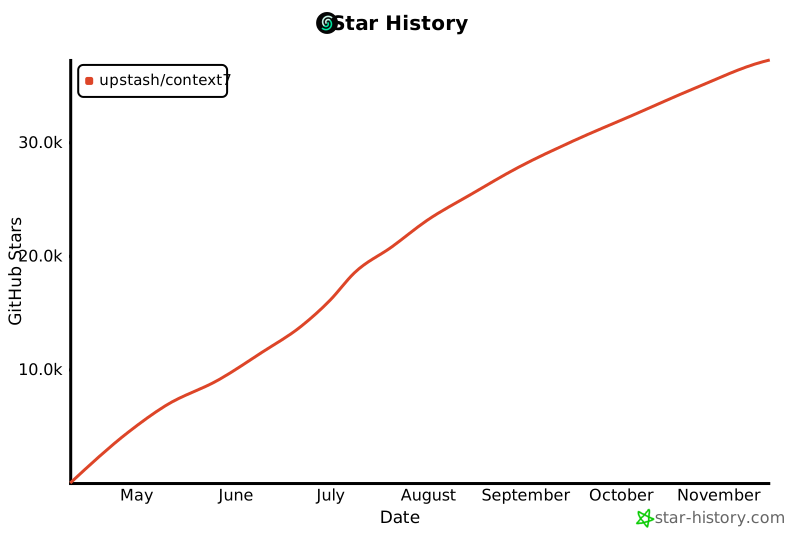](https://www.star-history.com/#upstash/context7 & Date)
2025-04-23 11:37:56 +08:00
2025-08-19 10:50:30 +08:00
## 📄 许可证
2025-04-23 11:37:56 +08:00
2025-08-19 17:59:51 +03:00
MIT
