mirror of
https://github.com/upstash/context7.git
synced 2025-12-12 07:21:36 +00:00
 7b46212f93
Added detailed instructions for installing and configuring Context7 MCP in Copilot CLI to all localized README files. This includes example JSON configurations for both remote and local MCP servers, and notes on creating the configuration file if it does not exist.
1031 lines
25 KiB
Markdown
1031 lines
25 KiB
Markdown
# Context7 MCP - 即時更新的程式碼文件,適用於任何提示
|
||
|
||
[](https://context7.com) [](https://smithery.ai/server/@upstash/context7-mcp) [<img alt="在 VS Code 中安裝 (npx)" src="https://img.shields.io/badge/VS_Code-VS_Code?style=flat-square&label=安裝%20Context7%20MCP&color=0098FF">](https://insiders.vscode.dev/redirect?url=vscode%3Amcp%2Finstall%3F%7B%22name%22%3A%22context7%22%2C%22command%22%3A%22npx%22%2C%22args%22%3A%5B%22-y%22%2C%22%40upstash%2Fcontext7-mcp%40latest%22%5D%7D)
|
||
|
||
## ❌ 沒有 Context7
|
||
|
||
大型語言模型(LLM)依賴過時或通用的函式庫資訊。你會遇到:
|
||
|
||
- ❌ 程式碼範例過時,僅根據一年前的訓練資料
|
||
- ❌ 產生不存在的 API
|
||
- ❌ 舊版套件的通用答案
|
||
|
||
## ✅ 有了 Context7
|
||
|
||
Context7 MCP 直接從來源拉取即時、特定版本的文件與程式碼範例,並直接放入你的提示中。
|
||
|
||
在 Cursor 的提示中加入 `use context7`:
|
||
|
||
```txt
|
||
建立一個使用 app router 的基本 Next.js 專案。use context7
|
||
```
|
||
|
||
```txt
|
||
根據 PostgreSQL 資訊,建立一個刪除 city 為 "" 的資料列的腳本。use context7
|
||
```
|
||
|
||
Context7 會將即時的程式碼範例與文件直接帶入你的 LLM 上下文。
|
||
|
||
- 1️⃣ 自然地撰寫你的提示
|
||
- 2️⃣ 告訴 LLM `use context7`
|
||
- 3️⃣ 取得可執行的程式碼解答
|
||
|
||
不需切換分頁、不會產生不存在的 API、不會有過時的程式碼。
|
||
|
||
## 📚 新增專案
|
||
|
||
請參考我們的[專案新增指南](./adding-projects.md),學習如何將你喜愛的函式庫加入 Context7 或更新其內容。
|
||
|
||
## 🛠️ 安裝
|
||
|
||
### 系統需求
|
||
|
||
- Node.js >= v18.0.0
|
||
- Cursor、Windsurf、Claude Desktop 或其他 MCP 客戶端
|
||
|
||
<details>
|
||
<summary><b>透過 Smithery 安裝</b></summary>
|
||
|
||
要透過 [Smithery](https://smithery.ai/server/@upstash/context7-mcp) 自動安裝 Context7 MCP Server:
|
||
|
||
```bash
|
||
npx -y @smithery/cli@latest install @upstash/context7-mcp --client <CLIENT_NAME> --key <YOUR_SMITHERY_KEY>
|
||
```
|
||
|
||
你的 Smithery 金鑰可在 [Smithery.ai 網頁](https://smithery.ai/server/@upstash/context7-mcp) 取得。
|
||
|
||
</details>
|
||
|
||
<details>
|
||
<summary><b>在 Cursor 安裝</b></summary>
|
||
|
||
前往:`Settings` -> `Cursor Settings` -> `MCP` -> `Add new global MCP server`
|
||
|
||
建議將下列設定貼到你的 Cursor `~/.cursor/mcp.json` 檔案。你也可以在專案資料夾建立 `.cursor/mcp.json` 進行專案安裝。詳見 [Cursor MCP 文件](https://docs.cursor.com/context/model-context-protocol)。
|
||
|
||
#### Cursor 遠端伺服器連線
|
||
|
||
```json
|
||
{
|
||
"mcpServers": {
|
||
"context7": {
|
||
"url": "https://mcp.context7.com/mcp"
|
||
}
|
||
}
|
||
}
|
||
```
|
||
|
||
#### Cursor 本地伺服器連線
|
||
|
||
[](https://cursor.com/install-mcp?name=context7&config=eyJjb21tYW5kIjoibnB4IC15IEB1cHN0YXNoL2NvbnRleHQ3LW1jcCJ9)
|
||
|
||
```json
|
||
{
|
||
"mcpServers": {
|
||
"context7": {
|
||
"command": "npx",
|
||
"args": ["-y", "@upstash/context7-mcp"]
|
||
}
|
||
}
|
||
}
|
||
```
|
||
|
||
<details>
|
||
<summary>替代方案:使用 Bun</summary>
|
||
|
||
[](https://cursor.com/install-mcp?name=context7&config=eyJjb21tYW5kIjoiYnVueCAteSBAdXBzdGFzaC9jb250ZXh0Ny1tY3AifQ%3D%3D)
|
||
|
||
```json
|
||
{
|
||
"mcpServers": {
|
||
"context7": {
|
||
"command": "bunx",
|
||
"args": ["-y", "@upstash/context7-mcp"]
|
||
}
|
||
}
|
||
}
|
||
```
|
||
|
||
</details>
|
||
|
||
<details>
|
||
<summary>替代方案:使用 Deno</summary>
|
||
|
||
[](https://cursor.com/install-mcp?name=context7&config=eyJjb21tYW5kIjoiZGVubyBydW4gLS1hbGxvdy1lbnYgLS1hbGxvdy1uZXQgbnBtOkB1cHN0YXNoL2NvbnRleHQ3LW1jcCJ9)
|
||
|
||
```json
|
||
{
|
||
"mcpServers": {
|
||
"context7": {
|
||
"command": "deno",
|
||
"args": ["run", "--allow-env", "--allow-net", "npm:@upstash/context7-mcp"]
|
||
}
|
||
}
|
||
}
|
||
```
|
||
|
||
</details>
|
||
|
||
</details>
|
||
|
||
<details>
|
||
<summary><b>在 Windsurf 安裝</b></summary>
|
||
|
||
將下列內容加入 Windsurf MCP 設定檔。詳見 [Windsurf MCP 文件](https://docs.windsurf.com/windsurf/mcp)。
|
||
|
||
#### Windsurf 遠端伺服器連線
|
||
|
||
```json
|
||
{
|
||
"mcpServers": {
|
||
"context7": {
|
||
"serverUrl": "https://mcp.context7.com/mcp"
|
||
}
|
||
}
|
||
}
|
||
```
|
||
|
||
#### Windsurf 本地伺服器連線
|
||
|
||
```json
|
||
{
|
||
"mcpServers": {
|
||
"context7": {
|
||
"command": "npx",
|
||
"args": ["-y", "@upstash/context7-mcp"]
|
||
}
|
||
}
|
||
}
|
||
```
|
||
|
||
</details>
|
||
|
||
<details>
|
||
<summary><b>在 Trae 安裝</b></summary>
|
||
|
||
請使用「手動新增」功能,並填寫該 MCP 伺服器的 JSON 設定資訊。
|
||
欲了解更多詳情,請參閱 [Trae 文件](https://docs.trae.ai/ide/model-context-protocol?_lang=zh-tw)。
|
||
|
||
#### Trae 遠端伺服器連線
|
||
|
||
```json
|
||
{
|
||
"mcpServers": {
|
||
"context7": {
|
||
"url": "https://mcp.context7.com/mcp"
|
||
}
|
||
}
|
||
}
|
||
```
|
||
|
||
#### Trae 本地伺服器連線
|
||
|
||
```json
|
||
{
|
||
"mcpServers": {
|
||
"context7": {
|
||
"command": "npx",
|
||
"args": ["-y", "@upstash/context7-mcp"]
|
||
}
|
||
}
|
||
}
|
||
```
|
||
|
||
</details>
|
||
|
||
<details>
|
||
<summary><b>在 VS Code 安裝</b></summary>
|
||
|
||
[<img alt="在 VS Code 中安裝 (npx)" src="https://img.shields.io/badge/VS_Code-VS_Code?style=flat-square&label=安裝Context7%20MCP&color=0098FF">](https://insiders.vscode.dev/redirect?url=vscode%3Amcp%2Finstall%3F%7B%22name%22%3A%22context7%22%2C%22command%22%3A%22npx%22%2C%22args%22%3A%5B%22-y%22%2C%22%40upstash%2Fcontext7-mcp%40latest%22%5D%7D)
|
||
[<img alt="在 VS Code Insiders 中安裝 (npx)" src="https://img.shields.io/badge/VS_Code_Insiders-VS_Code_Insiders?style=flat-square&label=安裝Context7%20MCP&color=24bfa5">](https://insiders.vscode.dev/redirect?url=vscode-insiders%3Amcp%2Finstall%3F%7B%22name%22%3A%22context7%22%2C%22command%22%3A%22npx%22%2C%22args%22%3A%5B%22-y%22%2C%22%40upstash%2Fcontext7-mcp%40latest%22%5D%7D)
|
||
|
||
將下列內容加入 VS Code MCP 設定檔。詳見 [VS Code MCP 文件](https://code.visualstudio.com/docs/copilot/chat/mcp-servers)。
|
||
|
||
#### VS Code 遠端伺服器連線
|
||
|
||
```json
|
||
"mcp": {
|
||
"servers": {
|
||
"context7": {
|
||
"type": "http",
|
||
"url": "https://mcp.context7.com/mcp"
|
||
}
|
||
}
|
||
}
|
||
```
|
||
|
||
#### VS Code 本地伺服器連線
|
||
|
||
```json
|
||
"mcp": {
|
||
"servers": {
|
||
"context7": {
|
||
"type": "stdio",
|
||
"command": "npx",
|
||
"args": ["-y", "@upstash/context7-mcp"]
|
||
}
|
||
}
|
||
}
|
||
```
|
||
|
||
</details>
|
||
|
||
<details>
|
||
<summary><b>在 Visual Studio 2022 安裝</b></summary>
|
||
|
||
您可以按照 [Visual Studio MCP 伺服器文件](https://learn.microsoft.com/visualstudio/ide/mcp-servers?view=vs-2022) 的說明,在 Visual Studio 2022 中設定 Context7 MCP。
|
||
|
||
請將以下內容新增至您的 Visual Studio MCP 設定檔(詳細資訊請參閱 [Visual Studio 文件](https://learn.microsoft.com/visualstudio/ide/mcp-servers?view=vs-2022)):
|
||
|
||
```json
|
||
{
|
||
"mcp": {
|
||
"servers": {
|
||
"context7": {
|
||
"type": "http",
|
||
"url": "https://mcp.context7.com/mcp"
|
||
}
|
||
}
|
||
}
|
||
}
|
||
```
|
||
|
||
或者,若要使用本地伺服器:
|
||
|
||
```json
|
||
{
|
||
"mcp": {
|
||
"servers": {
|
||
"context7": {
|
||
"type": "stdio",
|
||
"command": "npx",
|
||
"args": ["-y", "@upstash/context7-mcp"]
|
||
}
|
||
}
|
||
}
|
||
}
|
||
```
|
||
|
||
如需更多資訊與疑難排解,請參閱 [Visual Studio MCP 伺服器文件](https://learn.microsoft.com/visualstudio/ide/mcp-servers?view=vs-2022)。
|
||
|
||
</details>
|
||
|
||
<details>
|
||
<summary><b>在 Zed 安裝</b></summary>
|
||
|
||
可透過 [Zed 擴充套件](https://zed.dev/extensions?query=Context7) 安裝,或將下列內容加入 Zed `settings.json`。詳見 [Zed Context Server 文件](https://zed.dev/docs/assistant/context-servers)。
|
||
|
||
```json
|
||
{
|
||
"context_servers": {
|
||
"Context7": {
|
||
"command": {
|
||
"path": "npx",
|
||
"args": ["-y", "@upstash/context7-mcp"]
|
||
},
|
||
"settings": {}
|
||
}
|
||
}
|
||
}
|
||
```
|
||
|
||
</details>
|
||
|
||
<details>
|
||
<summary><b>在 Gemini CLI 安裝</b></summary>
|
||
|
||
詳閱 [Gemini CLI 設定說明](https://github.com/google-gemini/gemini-cli/blob/main/docs/cli/configuration.md)。
|
||
|
||
1. 開啟 Gemini CLI 設定檔,位置為 `~/.gemini/settings.json`(其中 `~` 代表您的家目錄)。
|
||
2. 在您的 `settings.json` 檔案中的 `mcpServers` 物件內新增以下內容:
|
||
|
||
```json
|
||
{
|
||
"mcpServers": {
|
||
"context7": {
|
||
"httpUrl": "https://mcp.context7.com/mcp"
|
||
}
|
||
}
|
||
}
|
||
```
|
||
|
||
或者,若要使用本地伺服器:
|
||
|
||
```json
|
||
{
|
||
"mcpServers": {
|
||
"context7": {
|
||
"command": "npx",
|
||
"args": ["-y", "@upstash/context7-mcp"]
|
||
}
|
||
}
|
||
}
|
||
```
|
||
|
||
如果 `mcpServers` 物件不存在,請建立它。
|
||
|
||
</details>
|
||
|
||
<details>
|
||
<summary><b>在 Claude Code 安裝</b></summary>
|
||
|
||
執行下列指令。詳見 [Claude Code MCP 文件](https://docs.anthropic.com/zh-TW/docs/claude-code/mcp)。
|
||
|
||
#### Claude Code 遠端伺服器連線
|
||
|
||
```sh
|
||
claude mcp add --transport http context7 https://mcp.context7.com/mcp
|
||
```
|
||
|
||
#### Claude Code 本地伺服器連線
|
||
|
||
```sh
|
||
claude mcp add context7 -- npx -y @upstash/context7-mcp
|
||
```
|
||
|
||
</details>
|
||
|
||
<details>
|
||
<summary><b>在 Claude Desktop 安裝</b></summary>
|
||
|
||
將下列內容加入 Claude Desktop `claude_desktop_config.json`。詳見 [Claude Desktop MCP 文件](https://modelcontextprotocol.io/quickstart/user)。
|
||
|
||
```json
|
||
{
|
||
"mcpServers": {
|
||
"Context7": {
|
||
"command": "npx",
|
||
"args": ["-y", "@upstash/context7-mcp"]
|
||
}
|
||
}
|
||
}
|
||
```
|
||
|
||
</details>
|
||
|
||
<details>
|
||
<summary>
|
||
<b>在 Cline 安裝</b>
|
||
</summary>
|
||
|
||
您可以按照以下說明,透過 [Cline MCP 伺服器市集](https://cline.bot/mcp-marketplace) 輕鬆安裝 Context7:
|
||
|
||
1. 開啟 **Cline**。
|
||
2. 點擊選單圖示(☰)進入 **MCP 伺服器** 區段。
|
||
3. 在 **市集** 分頁的搜尋欄中尋找 _Context7_。
|
||
4. 點擊 **安裝** 按鈕。
|
||
|
||
您也可以直接修改 MCP servers 設定檔案:
|
||
|
||
1. 開啟 Cline。
|
||
2. 點擊選單圖示 (☰),進入 MCP 伺服器部分。
|
||
3. 選擇遠端伺服器標籤。
|
||
4. 點擊編輯設定按鈕。
|
||
5. 將 context7 相關設定新增至 mcpServers:
|
||
|
||
```json
|
||
{
|
||
"mcpServers": {
|
||
"context7": {
|
||
"url": "https://mcp.context7.com/mcp",
|
||
"type": "streamableHttp",
|
||
"headers": {
|
||
"Authorization": "Bearer YOUR_API_KEY"
|
||
}
|
||
}
|
||
}
|
||
}
|
||
```
|
||
|
||
</details>
|
||
|
||
<details>
|
||
<summary><b>在 BoltAI 安裝</b></summary>
|
||
|
||
打開應用程式的「Settings」頁面,前往「Plugins」,並輸入下列 JSON:
|
||
|
||
```json
|
||
{
|
||
"mcpServers": {
|
||
"context7": {
|
||
"command": "npx",
|
||
"args": ["-y", "@upstash/context7-mcp"]
|
||
}
|
||
}
|
||
}
|
||
```
|
||
|
||
儲存後,在聊天中輸入 `get-library-docs` 並接上你的 Context7 文件 ID(例如 `get-library-docs /nuxt/ui`)。更多資訊請參考 [BoltAI 文件網站](https://docs.boltai.com/docs/plugins/mcp-servers)。如在 iOS 上使用 BoltAI,請參考[此指南](https://docs.boltai.com/docs/boltai-mobile/mcp-servers)。
|
||
|
||
</details>
|
||
|
||
<details>
|
||
<summary><b>在 Copilot Coding Agent 安裝</b></summary>
|
||
|
||
## 在 Copilot Coding Agent 使用 Context7
|
||
|
||
請將以下設定加入 Copilot Coding Agent 的 `mcp` 設定區塊(Repository->Settings->Copilot->Coding agent->MCP configuration):
|
||
|
||
```json
|
||
{
|
||
"mcpServers": {
|
||
"context7": {
|
||
"type": "http",
|
||
"url": "https://mcp.context7.com/mcp",
|
||
"tools": ["get-library-docs", "resolve-library-id"]
|
||
}
|
||
}
|
||
}
|
||
```
|
||
|
||
更多資訊請參見[官方 GitHub 文件](https://docs.github.com/en/enterprise-cloud@latest/copilot/how-tos/agents/copilot-coding-agent/extending-copilot-coding-agent-with-mcp)。
|
||
|
||
</details>
|
||
|
||
<details>
|
||
<summary><b>在 Copilot CLI 中安裝</b></summary>
|
||
|
||
1. 打開 Copilot CLI MCP 設定檔。位置為 `~/.copilot/mcp-config.json`(其中 `~` 是您的主目錄)。
|
||
2. 在 `mcp-config.json` 檔案中的 `mcpServers` 物件新增下列内容:
|
||
|
||
```json
|
||
{
|
||
"mcpServers": {
|
||
"context7": {
|
||
"type": "http",
|
||
"url": "https://mcp.context7.com/mcp",
|
||
"headers": {
|
||
"CONTEXT7_API_KEY": "YOUR_API_KEY"
|
||
},
|
||
"tools": [
|
||
"get-library-docs",
|
||
"resolve-library-id"
|
||
]
|
||
}
|
||
}
|
||
}
|
||
```
|
||
|
||
或者,對於本地伺服器:
|
||
|
||
```json
|
||
{
|
||
"mcpServers": {
|
||
"context7": {
|
||
"type": "local",
|
||
"command": "npx",
|
||
"tools": [
|
||
"get-library-docs",
|
||
"resolve-library-id"
|
||
],
|
||
"args": [
|
||
"-y",
|
||
"@upstash/context7-mcp",
|
||
"--api-key",
|
||
"YOUR_API_KEY"
|
||
]
|
||
}
|
||
}
|
||
}
|
||
```
|
||
|
||
如果 `mcp-config.json` 檔案不存在,請建立它。
|
||
|
||
</details>
|
||
|
||
<details>
|
||
<summary><b>使用 Docker</b></summary>
|
||
|
||
若你偏好在 Docker 容器中執行 MCP 伺服器:
|
||
|
||
1. **建立 Docker 映像檔:**
|
||
|
||
先在專案根目錄(或任意位置)建立 `Dockerfile`:
|
||
|
||
<details>
|
||
<summary>點擊查看 Dockerfile 內容</summary>
|
||
|
||
```Dockerfile
|
||
FROM node:18-alpine
|
||
|
||
WORKDIR /app
|
||
|
||
# 全域安裝最新版
|
||
RUN npm install -g @upstash/context7-mcp
|
||
|
||
# 如有需要可開放預設埠(視 MCP 客戶端互動而定)
|
||
# EXPOSE 3000
|
||
|
||
# 預設啟動指令
|
||
CMD ["context7-mcp"]
|
||
```
|
||
|
||
</details>
|
||
|
||
然後使用標籤(如 `context7-mcp`)建構映像檔。**請確保 Docker Desktop(或 Docker daemon)已啟動。**在存有 `Dockerfile` 的目錄執行:
|
||
|
||
```bash
|
||
docker build -t context7-mcp .
|
||
```
|
||
|
||
2. **設定 MCP 客戶端:**
|
||
|
||
更新 MCP 客戶端設定以使用 Docker 指令。
|
||
|
||
_cline_mcp_settings.json 範例:_
|
||
|
||
```json
|
||
{
|
||
"mcpServers": {
|
||
"Сontext7": {
|
||
"autoApprove": [],
|
||
"disabled": false,
|
||
"timeout": 60,
|
||
"command": "docker",
|
||
"args": ["run", "-i", "--rm", "context7-mcp"],
|
||
"transportType": "stdio"
|
||
}
|
||
}
|
||
}
|
||
```
|
||
|
||
_注意:這是範例設定。請參考前述各 MCP 客戶端(如 Cursor、VS Code 等)的範例調整結構(如 `mcpServers` 與 `servers`)。同時確保 `args` 中的映像名稱與 `docker build` 使用的標籤一致。_
|
||
|
||
</details>
|
||
|
||
<details>
|
||
<summary><b>在 Windows 安裝</b></summary>
|
||
|
||
Windows 的設定與 Linux 或 macOS 略有不同(_範例以 Cline 為例_)。其他編輯器同理,請參考 `command` 與 `args` 設定。
|
||
|
||
```json
|
||
{
|
||
"mcpServers": {
|
||
"github.com/upstash/context7-mcp": {
|
||
"command": "cmd",
|
||
"args": ["/c", "npx", "-y", "@upstash/context7-mcp@latest"],
|
||
"disabled": false,
|
||
"autoApprove": []
|
||
}
|
||
}
|
||
}
|
||
```
|
||
|
||
</details>
|
||
|
||
<details>
|
||
<summary><b>在 Augment Code 安裝</b></summary>
|
||
|
||
在 Augment Code 設定 Context7 MCP,請依下列步驟:
|
||
|
||
1. 按 Cmd/Ctrl Shift P 或於 Augment 面板的漢堡選單中選擇
|
||
2. 選擇 Edit Settings
|
||
3. 於 Advanced 下點選 Edit in settings.json
|
||
4. 將伺服器設定加入 `augment.advanced` 物件的 `mcpServers` 陣列
|
||
|
||
```json
|
||
"augment.advanced": {
|
||
"mcpServers": [
|
||
{
|
||
"name": "context7",
|
||
"command": "npx",
|
||
"args": ["-y", "@upstash/context7-mcp"]
|
||
}
|
||
]
|
||
}
|
||
```
|
||
|
||
加入 MCP 伺服器後,請重啟編輯器。如遇錯誤,請檢查語法是否有遺漏括號或逗號。
|
||
|
||
</details>
|
||
|
||
<details>
|
||
<summary><b>在 Roo Code 安裝</b></summary>
|
||
|
||
將以下內容加入你的 Roo Code MCP 設定檔。更多資訊請參考 [Roo Code MCP 文件](https://docs.roocode.com/features/mcp/using-mcp-in-roo)。
|
||
|
||
#### Roo Code 遠端伺服器連線
|
||
|
||
```json
|
||
{
|
||
"mcpServers": {
|
||
"context7": {
|
||
"type": "streamable-http",
|
||
"url": "https://mcp.context7.com/mcp"
|
||
}
|
||
}
|
||
}
|
||
```
|
||
|
||
#### Roo Code 本地伺服器連線
|
||
|
||
```json
|
||
{
|
||
"mcpServers": {
|
||
"context7": {
|
||
"command": "npx",
|
||
"args": ["-y", "@upstash/context7-mcp"]
|
||
}
|
||
}
|
||
}
|
||
```
|
||
|
||
</details>
|
||
|
||
<details>
|
||
<summary><b>在 Zencoder 安裝</b></summary>
|
||
|
||
要在 Zencoder 設定 Context7 MCP,請依照下列步驟操作:
|
||
|
||
1. 前往 Zencoder 選單(...)
|
||
2. 從下拉選單選擇 Agent tools
|
||
3. 點擊 Add custom MCP
|
||
4. 輸入名稱與下方伺服器設定,並記得點擊 Install 按鈕
|
||
|
||
```json
|
||
{
|
||
"command": "npx",
|
||
"args": ["-y", "@upstash/context7-mcp@latest"]
|
||
}
|
||
```
|
||
|
||
新增 MCP 伺服器後,即可繼續使用。
|
||
|
||
</details>
|
||
|
||
<details>
|
||
<summary><b>在 Amazon Q Developer CLI 安裝</b></summary>
|
||
|
||
將以下內容加入你的 Amazon Q Developer CLI 設定檔。更多細節請參考 [Amazon Q Developer CLI 文件](https://docs.aws.amazon.com/amazonq/latest/qdeveloper-ug/command-line-mcp-configuration.html)。
|
||
|
||
```json
|
||
{
|
||
"mcpServers": {
|
||
"context7": {
|
||
"command": "npx",
|
||
"args": ["-y", "@upstash/context7-mcp@latest"]
|
||
}
|
||
}
|
||
}
|
||
```
|
||
|
||
</details>
|
||
|
||
<details>
|
||
<summary><b>在 Qodo Gen 安裝</b></summary>
|
||
|
||
詳情請參考 [Qodo Gen 文件](https://docs.qodo.ai/qodo-documentation/qodo-gen/qodo-gen-chat/agentic-mode/agentic-tools-mcps)。
|
||
|
||
1. 在 VSCode 或 IntelliJ 開啟 Qodo Gen 聊天面板。
|
||
2. 點擊 Connect more tools。
|
||
3. 點擊 + Add new MCP。
|
||
4. 加入以下設定:
|
||
|
||
```json
|
||
{
|
||
"mcpServers": {
|
||
"context7": {
|
||
"url": "https://mcp.context7.com/mcp"
|
||
}
|
||
}
|
||
}
|
||
```
|
||
|
||
</details>
|
||
|
||
<details>
|
||
<summary><b>在 JetBrains AI Assistant 安裝</b></summary>
|
||
|
||
詳情請參考 [JetBrains AI Assistant 文件](https://www.jetbrains.com/help/ai-assistant/configure-an-mcp-server.html)。
|
||
|
||
1. 在 JetBrains IDE 前往 `Settings` -> `Tools` -> `AI Assistant` -> `Model Context Protocol (MCP)`
|
||
2. 點擊 `+ Add`
|
||
3. 在對話框左上角點擊 `Command` 並選擇 As JSON
|
||
4. 輸入以下設定並點擊 `OK`
|
||
|
||
```json
|
||
{
|
||
"mcpServers": {
|
||
"context7": {
|
||
"command": "npx",
|
||
"args": ["-y", "@upstash/context7-mcp"]
|
||
}
|
||
}
|
||
}
|
||
```
|
||
|
||
5. 點擊 `Apply` 儲存變更。
|
||
6. 同樣方式也可在 JetBrains Junie 的 `Settings` -> `Tools` -> `Junie` -> `MCP Settings` 新增 context7。
|
||
|
||
</details>
|
||
|
||
<details>
|
||
<summary><b>在 Warp 安裝</b></summary>
|
||
|
||
詳情請參考 [Warp Model Context Protocol 文件](https://docs.warp.dev/knowledge-and-collaboration/mcp#adding-an-mcp-server)。
|
||
|
||
1. 前往 `Settings` > `AI` > `Manage MCP servers`
|
||
2. 點擊 `+ Add` 新增 MCP 伺服器
|
||
3. 貼上以下設定:
|
||
|
||
```json
|
||
{
|
||
"Context7": {
|
||
"command": "npx",
|
||
"args": ["-y", "@upstash/context7-mcp"],
|
||
"env": {},
|
||
"working_directory": null,
|
||
"start_on_launch": true
|
||
}
|
||
}
|
||
```
|
||
|
||
4. 點擊 `Save` 套用變更。
|
||
|
||
</details>
|
||
|
||
<details>
|
||
<summary><b>在 Opencode 安裝</b></summary>
|
||
|
||
將以下內容加入你的 Opencode 設定檔。更多資訊請參考 [Opencode MCP 文件](https://opencode.ai/docs/mcp-servers)。
|
||
|
||
#### Opencode 遠端伺服器連線
|
||
|
||
```json
|
||
"mcp": {
|
||
"context7": {
|
||
"type": "remote",
|
||
"url": "https://mcp.context7.com/mcp",
|
||
"enabled": true
|
||
}
|
||
}
|
||
```
|
||
|
||
#### Opencode 本地伺服器連線
|
||
|
||
```json
|
||
{
|
||
"mcp": {
|
||
"context7": {
|
||
"type": "local",
|
||
"command": ["npx", "-y", "@upstash/context7-mcp"],
|
||
"enabled": true
|
||
}
|
||
}
|
||
}
|
||
```
|
||
|
||
</details>
|
||
|
||
<details>
|
||
|
||
<summary><b>在 Kiro 安裝</b></summary>
|
||
|
||
詳情請參考 [Kiro Model Context Protocol 文件](https://kiro.dev/docs/mcp/configuration/)。
|
||
|
||
1. 前往 `Kiro` > `MCP Servers`
|
||
2. 點擊 `+ Add` 按鈕新增 MCP 伺服器。
|
||
3. 貼上以下設定:
|
||
|
||
```json
|
||
{
|
||
"mcpServers": {
|
||
"Context7": {
|
||
"command": "npx",
|
||
"args": ["-y", "@upstash/context7-mcp"],
|
||
"env": {},
|
||
"disabled": false,
|
||
"autoApprove": []
|
||
}
|
||
}
|
||
}
|
||
```
|
||
|
||
4. 點擊 `Save` 套用變更。
|
||
|
||
</details>
|
||
<details>
|
||
<summary><b>在 OpenAI Codex 安裝</b></summary>
|
||
|
||
詳情請參考 [OpenAI Codex](https://github.com/openai/codex)。
|
||
|
||
將下列設定加入你的 OpenAI Codex MCP 伺服器設定:
|
||
|
||
#### 本地伺服器連接
|
||
|
||
```toml
|
||
[mcp_servers.context7]
|
||
args = ["-y", "@upstash/context7-mcp"]
|
||
command = "npx"
|
||
```
|
||
|
||
#### 遠端伺服器連接
|
||
|
||
```toml
|
||
[mcp_servers.context7]
|
||
url = "https://mcp.context7.com/mcp"
|
||
http_headers = { "CONTEXT7_API_KEY" = "YOUR_API_KEY" }
|
||
```
|
||
|
||
</details>
|
||
<details>
|
||
<summary><b>在 LM Studio 安裝</b></summary>
|
||
|
||
詳情請參考 [LM Studio MCP 支援](https://lmstudio.ai/blog/lmstudio-v0.3.17)。
|
||
|
||
#### 一鍵安裝:
|
||
|
||
[](https://lmstudio.ai/install-mcp?name=context7&config=eyJjb21tYW5kIjoibnB4IiwiYXJncyI6WyIteSIsIkB1cHN0YXNoL2NvbnRleHQ3LW1jcCJdfQ%3D%3D)
|
||
|
||
#### 手動設定:
|
||
|
||
1. 前往 `Program`(右側)> `Install` > `Edit mcp.json`
|
||
2. 貼上以下設定:
|
||
|
||
```json
|
||
{
|
||
"mcpServers": {
|
||
"Context7": {
|
||
"command": "npx",
|
||
"args": ["-y", "@upstash/context7-mcp"]
|
||
}
|
||
}
|
||
}
|
||
```
|
||
|
||
3. 點擊 `Save` 套用變更。
|
||
4. 可於右側 `Program` 下方或聊天框底部的插頭圖示切換 MCP 伺服器開關。
|
||
|
||
</details>
|
||
## 🔧 環境變數
|
||
|
||
Context7 MCP 伺服器支援下列環境變數:
|
||
|
||
- `DEFAULT_MINIMUM_TOKENS`:設定文件擷取的最小 token 數(預設:10000)
|
||
|
||
範例設定:
|
||
|
||
```json
|
||
{
|
||
"mcpServers": {
|
||
"context7": {
|
||
"command": "npx",
|
||
"args": ["-y", "@upstash/context7-mcp"],
|
||
"env": {
|
||
"DEFAULT_MINIMUM_TOKENS": "6000"
|
||
}
|
||
}
|
||
}
|
||
}
|
||
```
|
||
|
||
## 🔨 可用工具
|
||
|
||
Context7 MCP 提供下列工具供 LLM 使用:
|
||
|
||
- `resolve-library-id`:將一般函式庫名稱解析為 Context7 相容的函式庫 ID。
|
||
- `libraryName`(必填):要查詢的函式庫名稱
|
||
|
||
- `get-library-docs`:根據 Context7 相容的函式庫 ID 取得文件。
|
||
- `context7CompatibleLibraryID`(必填):Context7 相容的函式庫 ID(如 `/mongodb/docs`, `/vercel/next.js`)
|
||
- `topic`(選填):聚焦於特定主題(如 "routing", "hooks")
|
||
- `tokens`(選填,預設 10000):最大回傳 token 數。小於預設或 `DEFAULT_MINIMUM_TOKENS` 的值會自動提升。
|
||
|
||
## 💻 開發
|
||
|
||
複製專案並安裝依賴:
|
||
|
||
```bash
|
||
bun i
|
||
```
|
||
|
||
建置:
|
||
|
||
```bash
|
||
bun run build
|
||
```
|
||
|
||
<details>
|
||
<summary><b>本地設定範例</b></summary>
|
||
|
||
```json
|
||
{
|
||
"mcpServers": {
|
||
"context7": {
|
||
"command": "npx",
|
||
"args": ["tsx", "/path/to/folder/context7-mcp/src/index.ts"]
|
||
}
|
||
}
|
||
}
|
||
```
|
||
|
||
</details>
|
||
|
||
<details>
|
||
<summary><b>使用 MCP Inspector 測試</b></summary>
|
||
|
||
```bash
|
||
npx -y @modelcontextprotocol/inspector npx @upstash/context7-mcp
|
||
```
|
||
|
||
</details>
|
||
|
||
## 🚨 疑難排解
|
||
|
||
<details>
|
||
<summary><b>找不到模組錯誤</b></summary>
|
||
|
||
若遇到 `ERR_MODULE_NOT_FOUND`,請嘗試用 `bunx` 取代 `npx`:
|
||
|
||
```json
|
||
{
|
||
"mcpServers": {
|
||
"context7": {
|
||
"command": "bunx",
|
||
"args": ["-y", "@upstash/context7-mcp"]
|
||
}
|
||
}
|
||
}
|
||
```
|
||
|
||
這通常能解決 `npx` 無法正確安裝或解析套件的問題。
|
||
|
||
</details>
|
||
|
||
<details>
|
||
<summary><b>ESM 解析問題</b></summary>
|
||
|
||
若出現 `Error: Cannot find module 'uriTemplate.js'`,請嘗試加上 `--experimental-vm-modules` 參數:
|
||
|
||
```json
|
||
{
|
||
"mcpServers": {
|
||
"context7": {
|
||
"command": "npx",
|
||
"args": ["-y", "--node-options=--experimental-vm-modules", "@upstash/context7-mcp@1.0.6"]
|
||
}
|
||
}
|
||
}
|
||
```
|
||
|
||
</details>
|
||
|
||
<details>
|
||
<summary><b>TLS/憑證問題</b></summary>
|
||
|
||
可加上 `--experimental-fetch` 參數繞過 TLS 問題:
|
||
|
||
```json
|
||
{
|
||
"mcpServers": {
|
||
"context7": {
|
||
"command": "npx",
|
||
"args": ["-y", "--node-options=--experimental-fetch", "@upstash/context7-mcp"]
|
||
}
|
||
}
|
||
}
|
||
```
|
||
|
||
</details>
|
||
|
||
<details>
|
||
<summary><b>一般 MCP 客戶端錯誤</b></summary>
|
||
|
||
1. 嘗試加上 `@latest` 於套件名稱
|
||
2. 改用 `bunx` 取代 `npx`
|
||
3. 或改用 `deno`
|
||
4. 請確認 Node.js 版本為 v18 或以上,以支援原生 fetch
|
||
|
||
</details>
|
||
|
||
## ⚠️ 免責聲明
|
||
|
||
Context7 專案由社群貢獻,雖然我們致力於維持高品質,但無法保證所有函式庫文件的正確性、完整性或安全性。Context7 上的專案由各自擁有者開發與維護,非 Context7 官方。若發現可疑、不當或潛在有害內容,請於專案頁面點選「檢舉」按鈕通知我們。我們會嚴肅處理所有檢舉,並盡快審查標記內容,以維護平台的完整性與安全。使用 Context7 即表示你同意自行承擔風險。
|
||
|
||
## 🤝 與我們聯繫
|
||
|
||
歡迎追蹤與加入社群:
|
||
|
||
- 📢 追蹤我們的 [X](https://x.com/contextai) 以獲取最新消息
|
||
- 🌐 造訪我們的 [官方網站](https://context7.com)
|
||
- 💬 加入我們的 [Discord 社群](https://upstash.com/discord)
|
||
|
||
## 📺 Context7 媒體報導
|
||
|
||
- [Better Stack:「免費工具讓 Cursor 智慧提升 10 倍」](https://youtu.be/52FC3qObp9E)
|
||
- [Cole Medin:「這絕對是 AI 程式助理最強 MCP 伺服器」](https://www.youtube.com/watch?v=G7gK8H6u7Rs)
|
||
- [Income Stream Surfers:「Context7 + SequentialThinking MCPs:這是 AGI 嗎?」](https://www.youtube.com/watch?v=-ggvzyLpK6o)
|
||
- [Julian Goldie SEO:「Context7:全新 MCP AI 代理更新」](https://www.youtube.com/watch?v=CTZm6fBYisc)
|
||
- [JeredBlu:「Context 7 MCP:即時獲取文件 + VS Code 設定」](https://www.youtube.com/watch?v=-ls0D-rtET4)
|
||
- [Income Stream Surfers:「Context7:將改變 AI 程式開發的新 MCP 伺服器」](https://www.youtube.com/watch?v=PS-2Azb-C3M)
|
||
- [AICodeKing:「Context7 + Cline & RooCode:這個 MCP 伺服器讓 CLINE 效率提升 100 倍!」](https://www.youtube.com/watch?v=qZfENAPMnyo)
|
||
- [Sean Kochel:「5 個 MCP 伺服器讓你程式開發如虎添翼(即插即用)」](https://www.youtube.com/watch?v=LqTQi8qexJM)
|
||
|
||
## ⭐ 星標歷史
|
||
|
||
[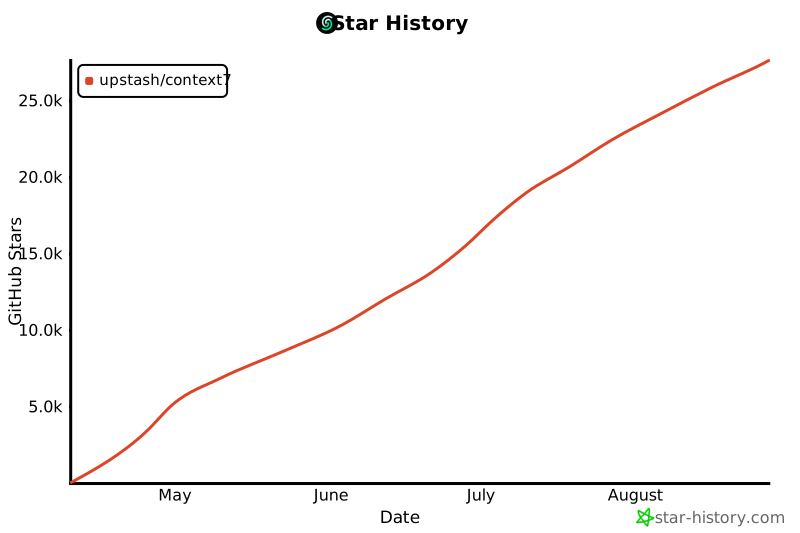](https://www.star-history.com/#upstash/context7&Date)
|
||
|
||
## 📄 授權
|
||
|
||
MIT
|