mirror of
https://github.com/upstash/context7.git
synced 2025-12-05 19:40:19 +00:00

341 lines
10 KiB
Markdown
341 lines
10 KiB
Markdown
# Context7 MCP - Up-to-date Docs For Any Prompt
|
||
|
||
[](https://context7.com) [](https://smithery.ai/server/@upstash/context7-mcp) [<img alt="Install in VS Code (npx)" src="https://img.shields.io/badge/VS_Code-VS_Code?style=flat-square&label=Install%20Context7%20MCP&color=0098FF">](https://insiders.vscode.dev/redirect?url=vscode%3Amcp%2Finstall%3F%7B%22name%22%3A%22context7%22%2C%22command%22%3A%22npx%22%2C%22args%22%3A%5B%22-y%22%2C%22%40upstash%2Fcontext7-mcp%40latest%22%5D%7D)
|
||
|
||
[](./docs/README.zh-CN.md) [](./docs/README.ko.md) [](./docs/README.es.md) [](./docs/README.fr.md)
|
||
|
||
## ❌ Without Context7
|
||
|
||
LLMs rely on outdated or generic information about the libraries you use. You get:
|
||
|
||
- ❌ Code examples are outdated and based on year-old training data
|
||
- ❌ Hallucinated APIs don't even exist
|
||
- ❌ Generic answers for old package versions
|
||
|
||
## ✅ With Context7
|
||
|
||
Context7 MCP pulls up-to-date, version-specific documentation and code examples straight from the source — and places them directly into your prompt.
|
||
|
||
Add `use context7` to your prompt in Cursor:
|
||
|
||
```txt
|
||
Create a basic Next.js project with app router. use context7
|
||
```
|
||
|
||
```txt
|
||
Create a script to delete the rows where the city is "" given PostgreSQL credentials. use context7
|
||
```
|
||
|
||
Context7 fetches up-to-date code examples and documentation right into your LLM's context.
|
||
|
||
- 1️⃣ Write your prompt naturally
|
||
- 2️⃣ Tell the LLM to `use context7`
|
||
- 3️⃣ Get working code answers
|
||
|
||
No tab-switching, no hallucinated APIs that don't exist, no outdated code generations.
|
||
|
||
## 🛠️ Getting Started
|
||
|
||
### Requirements
|
||
|
||
- Node.js >= v18.0.0
|
||
- Cursor, Windsurf, Claude Desktop or another MCP Client
|
||
|
||
### Installing via Smithery
|
||
|
||
To install Context7 MCP Server for Claude Desktop automatically via [Smithery](https://smithery.ai/server/@upstash/context7-mcp):
|
||
|
||
```bash
|
||
npx -y @smithery/cli install @upstash/context7-mcp --client claude
|
||
```
|
||
|
||
### Install in Cursor
|
||
|
||
Go to: `Settings` -> `Cursor Settings` -> `MCP` -> `Add new global MCP server`
|
||
|
||
Pasting the following configuration into your Cursor `~/.cursor/mcp.json` file is the recommended approach. See [Cursor MCP docs](https://docs.cursor.com/context/model-context-protocol) for more info.
|
||
|
||
```json
|
||
{
|
||
"mcpServers": {
|
||
"context7": {
|
||
"command": "npx",
|
||
"args": ["-y", "@upstash/context7-mcp@latest"]
|
||
}
|
||
}
|
||
}
|
||
```
|
||
|
||
<details>
|
||
<summary>Alternative: Use Bun</summary>
|
||
|
||
```json
|
||
{
|
||
"mcpServers": {
|
||
"context7": {
|
||
"command": "bunx",
|
||
"args": ["-y", "@upstash/context7-mcp@latest"]
|
||
}
|
||
}
|
||
}
|
||
```
|
||
|
||
</details>
|
||
|
||
<details>
|
||
<summary>Alternative: Use Deno</summary>
|
||
|
||
```json
|
||
{
|
||
"mcpServers": {
|
||
"context7": {
|
||
"command": "deno",
|
||
"args": ["run", "--allow-net", "npm:@upstash/context7-mcp"]
|
||
}
|
||
}
|
||
}
|
||
```
|
||
|
||
</details>
|
||
|
||
### Install in Windsurf
|
||
|
||
Add this to your Windsurf MCP config file. See [Windsurf MCP docs](https://docs.windsurf.com/windsurf/mcp) for more info.
|
||
|
||
```json
|
||
{
|
||
"mcpServers": {
|
||
"context7": {
|
||
"command": "npx",
|
||
"args": ["-y", "@upstash/context7-mcp@latest"]
|
||
}
|
||
}
|
||
}
|
||
```
|
||
|
||
### Install in VS Code
|
||
|
||
[<img alt="Install in VS Code (npx)" src="https://img.shields.io/badge/VS_Code-VS_Code?style=flat-square&label=Install%20Context7%20MCP&color=0098FF">](https://insiders.vscode.dev/redirect?url=vscode%3Amcp%2Finstall%3F%7B%22name%22%3A%22context7%22%2C%22command%22%3A%22npx%22%2C%22args%22%3A%5B%22-y%22%2C%22%40upstash%2Fcontext7-mcp%40latest%22%5D%7D)
|
||
[<img alt="Install in VS Code Insiders (npx)" src="https://img.shields.io/badge/VS_Code_Insiders-VS_Code_Insiders?style=flat-square&label=Install%20Context7%20MCP&color=24bfa5">](https://insiders.vscode.dev/redirect?url=vscode-insiders%3Amcp%2Finstall%3F%7B%22name%22%3A%22context7%22%2C%22command%22%3A%22npx%22%2C%22args%22%3A%5B%22-y%22%2C%22%40upstash%2Fcontext7-mcp%40latest%22%5D%7D)
|
||
|
||
Add this to your VS Code MCP config file. See [VS Code MCP docs](https://code.visualstudio.com/docs/copilot/chat/mcp-servers) for more info.
|
||
|
||
```json
|
||
{
|
||
"servers": {
|
||
"Context7": {
|
||
"type": "stdio",
|
||
"command": "npx",
|
||
"args": ["-y", "@upstash/context7-mcp@latest"]
|
||
}
|
||
}
|
||
}
|
||
```
|
||
|
||
### Install in Zed
|
||
|
||
It can be installed via [Zed Extensions](https://zed.dev/extensions?query=Context7) or you can add this to your Zed `settings.json`. See [Zed Context Server docs](https://zed.dev/docs/assistant/context-servers) for more info.
|
||
|
||
```json
|
||
{
|
||
"context_servers": {
|
||
"Context7": {
|
||
"command": {
|
||
"path": "npx",
|
||
"args": ["-y", "@upstash/context7-mcp@latest"]
|
||
},
|
||
"settings": {}
|
||
}
|
||
}
|
||
}
|
||
```
|
||
|
||
### Install in Claude Code
|
||
|
||
Run this command. See [Claude Code MCP docs](https://docs.anthropic.com/en/docs/agents-and-tools/claude-code/tutorials#set-up-model-context-protocol-mcp) for more info.
|
||
|
||
```sh
|
||
claude mcp add context7 -- npx -y @upstash/context7-mcp@latest
|
||
```
|
||
|
||
### Install in Claude Desktop
|
||
|
||
Add this to your Claude Desktop `claude_desktop_config.json` file. See [Claude Desktop MCP docs](https://modelcontextprotocol.io/quickstart/user) for more info.
|
||
|
||
```json
|
||
{
|
||
"mcpServers": {
|
||
"Context7": {
|
||
"command": "npx",
|
||
"args": ["-y", "@upstash/context7-mcp@latest"]
|
||
}
|
||
}
|
||
}
|
||
```
|
||
|
||
### Using Docker
|
||
|
||
If you prefer to run the MCP server in a Docker container:
|
||
|
||
1. **Build the Docker Image:**
|
||
|
||
First, create a `Dockerfile` in the project root (or anywhere you prefer):
|
||
|
||
<details>
|
||
<summary>Click to see Dockerfile content</summary>
|
||
|
||
```Dockerfile
|
||
FROM node:18-alpine
|
||
|
||
WORKDIR /app
|
||
|
||
# Install the latest version globally
|
||
RUN npm install -g @upstash/context7-mcp@latest
|
||
|
||
# Expose default port if needed (optional, depends on MCP client interaction)
|
||
# EXPOSE 3000
|
||
|
||
# Default command to run the server
|
||
CMD ["context7-mcp"]
|
||
```
|
||
|
||
</details>
|
||
|
||
Then, build the image using a tag (e.g., `context7-mcp`). **Make sure Docker Desktop (or the Docker daemon) is running.** Run the following command in the same directory where you saved the `Dockerfile`:
|
||
|
||
```bash
|
||
docker build -t context7-mcp .
|
||
```
|
||
|
||
2. **Configure Your MCP Client:**
|
||
|
||
Update your MCP client's configuration to use the Docker command.
|
||
|
||
*Example for a cline_mcp_settings.json:*
|
||
|
||
```json
|
||
{
|
||
"mcpServers": {
|
||
"Сontext7": {
|
||
"autoApprove": [],
|
||
"disabled": false,
|
||
"timeout": 60,
|
||
"command": "docker",
|
||
"args": ["run", "-i", "--rm", "context7-mcp"],
|
||
"transportType": "stdio"
|
||
}
|
||
}
|
||
}
|
||
```
|
||
*Note: This is an example configuration. Please refer to the specific examples for your MCP client (like Cursor, VS Code, etc.) earlier in this README to adapt the structure (e.g., `mcpServers` vs `servers`). Also, ensure the image name in `args` matches the tag used during the `docker build` command.*
|
||
|
||
### Available Tools
|
||
|
||
- `resolve-library-id`: Resolves a general library name into a Context7-compatible library ID.
|
||
- `libraryName` (required)
|
||
- `get-library-docs`: Fetches documentation for a library using a Context7-compatible library ID.
|
||
- `context7CompatibleLibraryID` (required)
|
||
- `topic` (optional): Focus the docs on a specific topic (e.g., "routing", "hooks")
|
||
- `tokens` (optional, default 5000): Max number of tokens to return. Values less than 5000 are automatically increased to 5000.
|
||
|
||
## Development
|
||
|
||
Clone the project and install dependencies:
|
||
|
||
```bash
|
||
bun i
|
||
```
|
||
|
||
Build:
|
||
|
||
```bash
|
||
bun run build
|
||
```
|
||
|
||
### Local Configuration Example
|
||
|
||
```json
|
||
{
|
||
"mcpServers": {
|
||
"context7": {
|
||
"command": "npx",
|
||
"args": ["tsx", "/path/to/folder/context7-mcp/src/index.ts"]
|
||
}
|
||
}
|
||
}
|
||
```
|
||
|
||
### Testing with MCP Inspector
|
||
|
||
```bash
|
||
npx -y @modelcontextprotocol/inspector npx @upstash/context7-mcp@latest
|
||
```
|
||
|
||
## Troubleshooting
|
||
|
||
### ERR_MODULE_NOT_FOUND
|
||
|
||
If you see this error, try using `bunx` instead of `npx`.
|
||
|
||
```json
|
||
{
|
||
"mcpServers": {
|
||
"context7": {
|
||
"command": "bunx",
|
||
"args": ["-y", "@upstash/context7-mcp@latest"]
|
||
}
|
||
}
|
||
}
|
||
```
|
||
|
||
This often resolves module resolution issues, especially in environments where `npx` does not properly install or resolve packages.
|
||
|
||
### ESM Resolution Issues
|
||
|
||
If you encounter an error like: `Error: Cannot find module 'uriTemplate.js'` try running with the `--experimental-vm-modules` flag:
|
||
|
||
```json
|
||
{
|
||
"mcpServers": {
|
||
"context7": {
|
||
"command": "npx",
|
||
"args": [
|
||
"-y",
|
||
"--node-options=--experimental-vm-modules",
|
||
"@upstash/context7-mcp@1.0.6"
|
||
]
|
||
}
|
||
}
|
||
}
|
||
```
|
||
|
||
### MCP Client Errors
|
||
|
||
1. Try removing `@latest` from the package name.
|
||
|
||
2. Try using `bunx` as an alternative.
|
||
|
||
3. Try using `deno` as an alternative.
|
||
|
||
4. Make sure you are using Node v18 or higher to have native fetch support with `npx`.
|
||
|
||
## Disclaimer
|
||
Context7 projects are community-contributed and while we strive to maintain high quality, we cannot guarantee the accuracy, completeness, or security of all library documentation. Projects listed in Context7 are developed and maintained by their respective owners, not by Context7. If you encounter any suspicious, inappropriate, or potentially harmful content, please use the "Report" button on the project page to notify us immediately. We take all reports seriously and will review flagged content promptly to maintain the integrity and safety of our platform. By using Context7, you acknowledge that you do so at your own discretion and risk.
|
||
|
||
## Context7 In Media
|
||
|
||
- [Better Stack: "Free Tool Makes Cursor 10x Smarter"](https://youtu.be/52FC3qObp9E)
|
||
- [Cole Medin: "This is Hands Down the BEST MCP Server for AI Coding Assistants"](https://www.youtube.com/watch?v=G7gK8H6u7Rs)
|
||
- [Income stream surfers: "Context7 + SequentialThinking MCPs: Is This AGI?"](https://www.youtube.com/watch?v=-ggvzyLpK6o)
|
||
- [Julian Goldie SEO: "Context7: New MCP AI Agent Update"](https://www.youtube.com/watch?v=CTZm6fBYisc)
|
||
- [JeredBlu: "Context 7 MCP: Get Documentation Instantly + VS Code Setup"](https://www.youtube.com/watch?v=-ls0D-rtET4)
|
||
- [Income stream surfers: "Context7: The New MCP Server That Will CHANGE AI Coding"](https://www.youtube.com/watch?v=PS-2Azb-C3M)
|
||
|
||
## Star History
|
||
|
||
[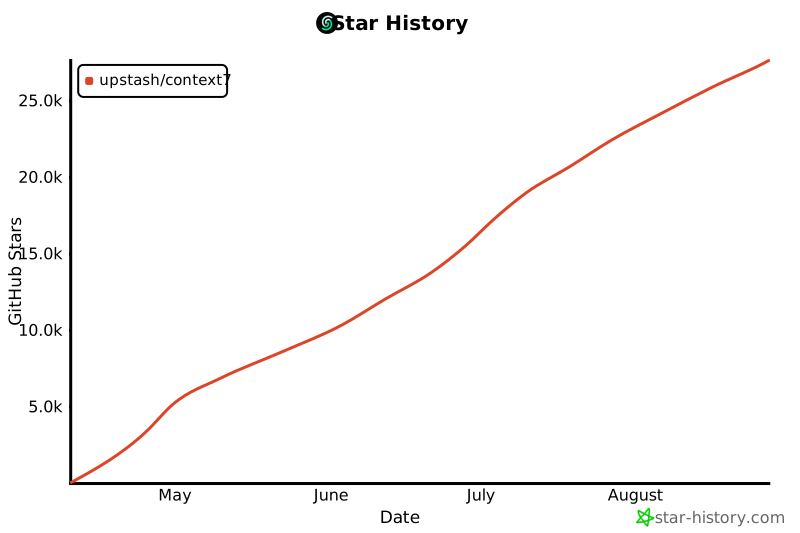](https://www.star-history.com/#upstash/context7&Date)
|
||
|
||
## License
|
||
|
||
MIT
|