mirror of
https://github.com/deepset-ai/haystack.git
synced 2026-02-03 05:23:45 +00:00
 90894491cf
* Update documentation and remove unused assets. Enhanced the 'agents' and 'components' sections with clearer descriptions and examples. Removed obsolete images and updated links for better navigation. Adjusted formatting for consistency across various documentation pages.

* remove dependency

* address comments

* delete more empty pages

* broken link

* unduplicate headings

* alphabetical components nav
43 lines
2.0 KiB
Plaintext
43 lines
2.0 KiB
Plaintext
---
|
|
title: "Enabling GPU Acceleration"
|
|
id: enabling-gpu-acceleration
|
|
slug: "/enabling-gpu-acceleration"
|
|
description: "Speed up your Haystack application by engaging the GPU."
|
|
---
|
|
|
|
import ClickableImage from "@site/src/components/ClickableImage";
|
|
|
|
# Enabling GPU Acceleration
|
|
|
|
Speed up your Haystack application by engaging the GPU.
|
|
|
|
The Transformer models used in Haystack are designed to be run on GPU-accelerated hardware. The steps for GPU acceleration setup depend on the environment that you're working in.
|
|
|
|
Once you have GPU enabled on your machine, you can set the `device` on which a given model for a component is loaded.
|
|
|
|
For example, to load a model for the `HuggingFaceLocalGenerator`, set `device="ComponentDevice.from_single(Device.gpu(id=0))` or `device = ComponentDevice.from_str("cuda:0")` when initializing.
|
|
|
|
You can find more information on the [Device management](../concepts/device-management.mdx) page.
|
|
|
|
### Enabling the GPU in Linux
|
|
|
|
1. Ensure that you have a fitting version of NVIDIA CUDA installed. To learn how to install CUDA, see the [NVIDIA CUDA Guide for Linux](https://docs.nvidia.com/cuda/cuda-installation-guide-linux/index.html).
|
|
|
|
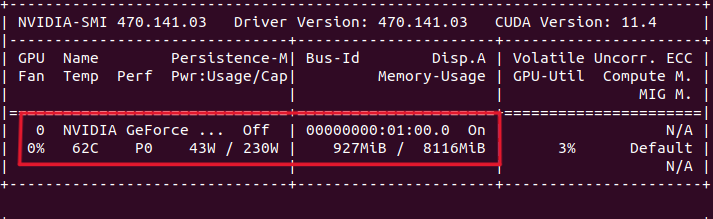
2. Run the `nvidia-smi`in the command line to check if the GPU is enabled. If the GPU is enabled, the output shows a list of available GPUs and their memory usage:
|
|
|
|
|
|
### Enabling the GPU in Colab
|
|
|
|
1. In your Colab environment, select **Runtime>Change Runtime type**.
|
|
<ClickableImage src="/img/85079c7-68747470733a2f2f7261772e67697468756275736572636f6e74656e742e636f6d2f646565707365742d61692f686179737461636b2f6d61696e2f646f63732f696d672f636f6c61625f6770755f72756e74696d652e6a7067.jpeg" alt="" />
|
|
|
|
2. Choose **Hardware accelerator>GPU**.
|
|
3. To check if the GPU is enabled, run:
|
|
|
|
```python python
|
|
%%bash
|
|
|
|
nvidia-smi
|
|
```
|
|
|
|
The output should show the GPUs available and their usage. |